System Usage
This section explains the common functions of the WalnutPi 1B Android TV system.
IR Remote Control (Recommended)
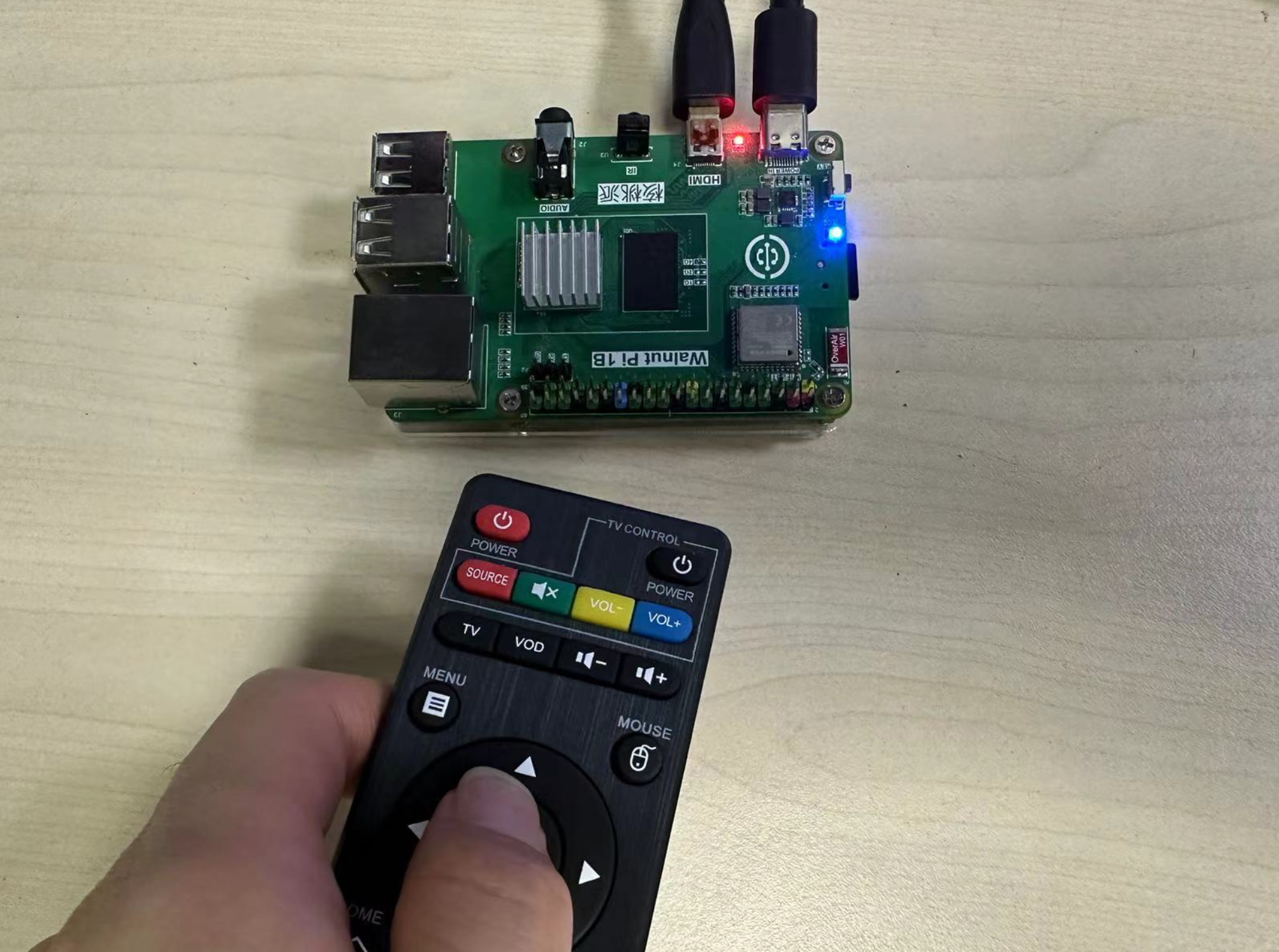
WalnutPi 1B has an onboard IR receiver, and can be controlled using a universal Android TV box remote control. Click to purchase >>
The blue LED will blink once when a signal is received successfully.
USB Keyboard and Mouse
You can connect a USB wireless or wired mouse to operate the Android system. In practice, some wireless mice are not supported — the model below is supported.
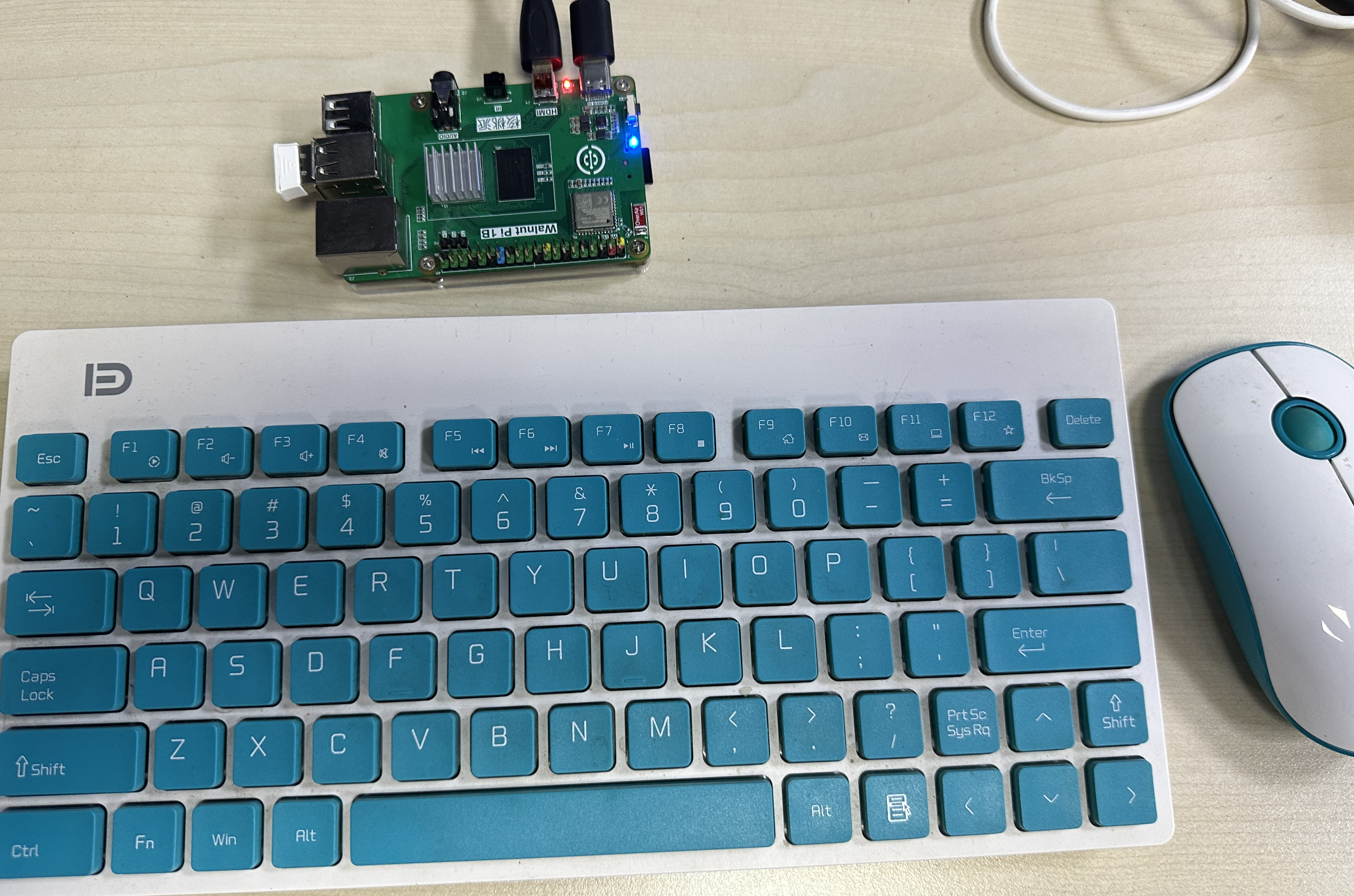
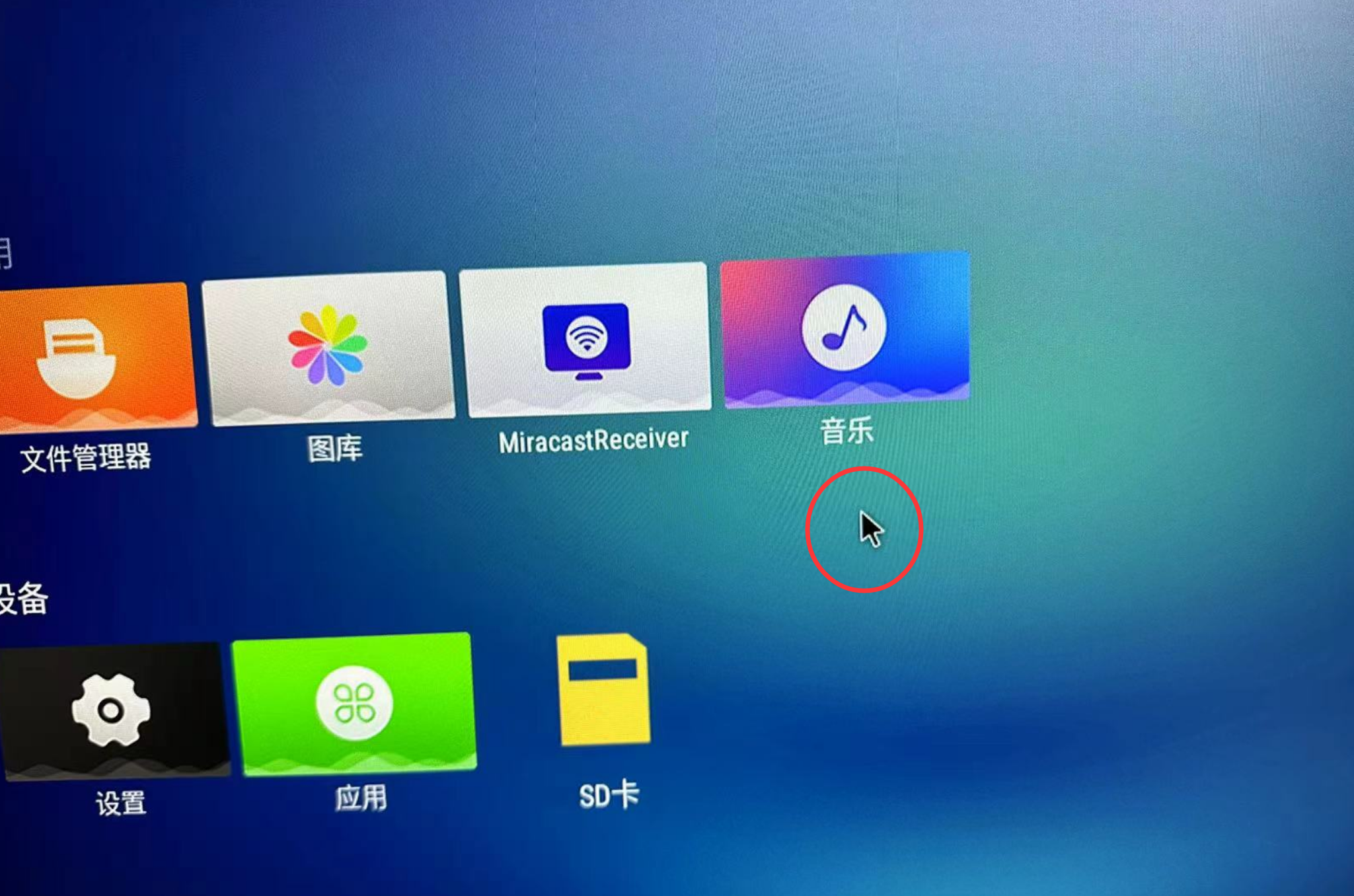
After plugging in, the mouse cursor will appear on the screen. When the keyboard is triggered, the blue LED will blink once.
Bluetooth keyboard and mouse can also be used:
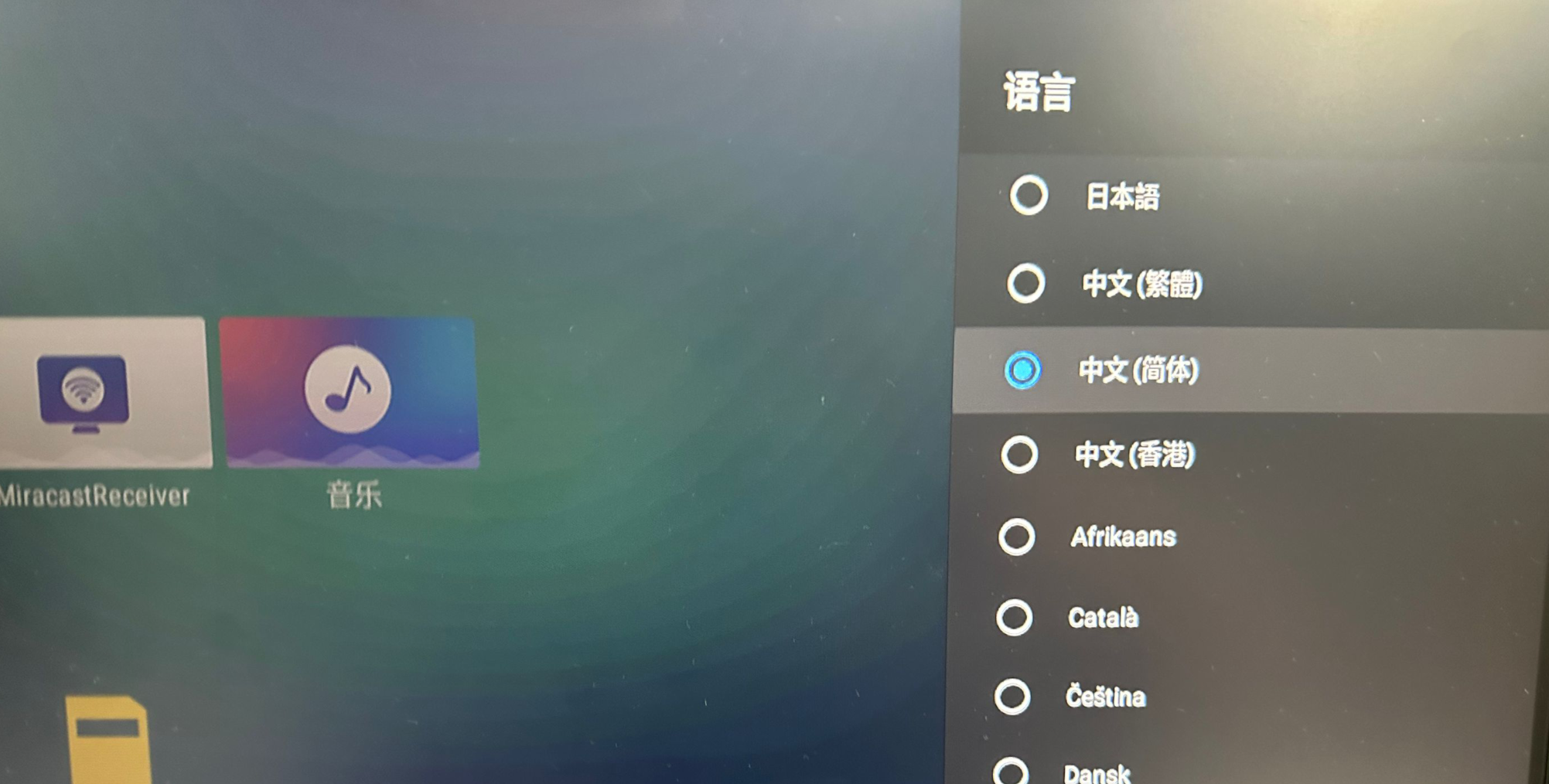
Language Settings
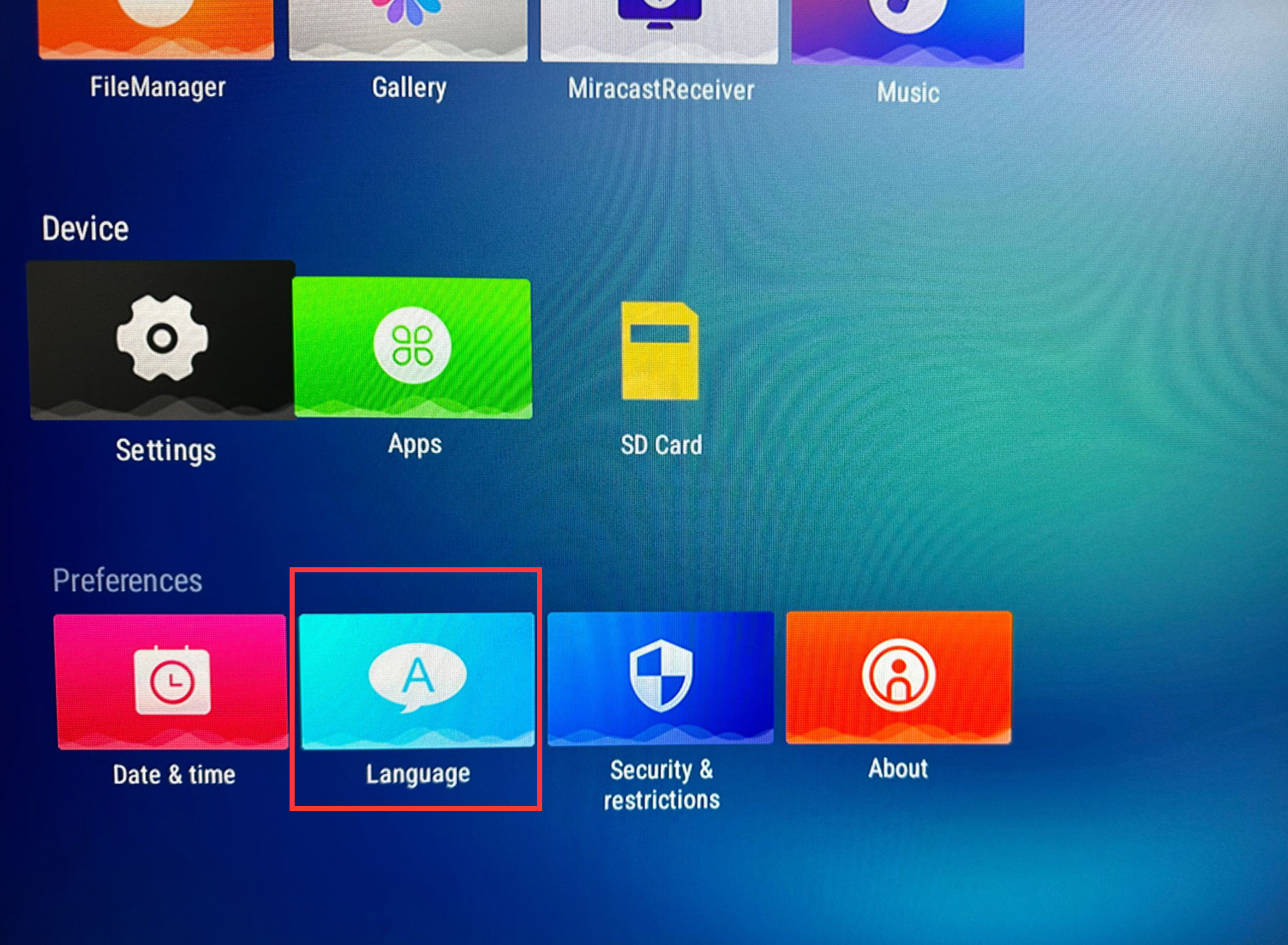
The default language after boot is English. You can set it to Chinese or other languages using the following method.
Connecting to the Internet
WalnutPi supports WiFi (2.4G and 5G dual-band) and 100M Ethernet for internet connectivity.
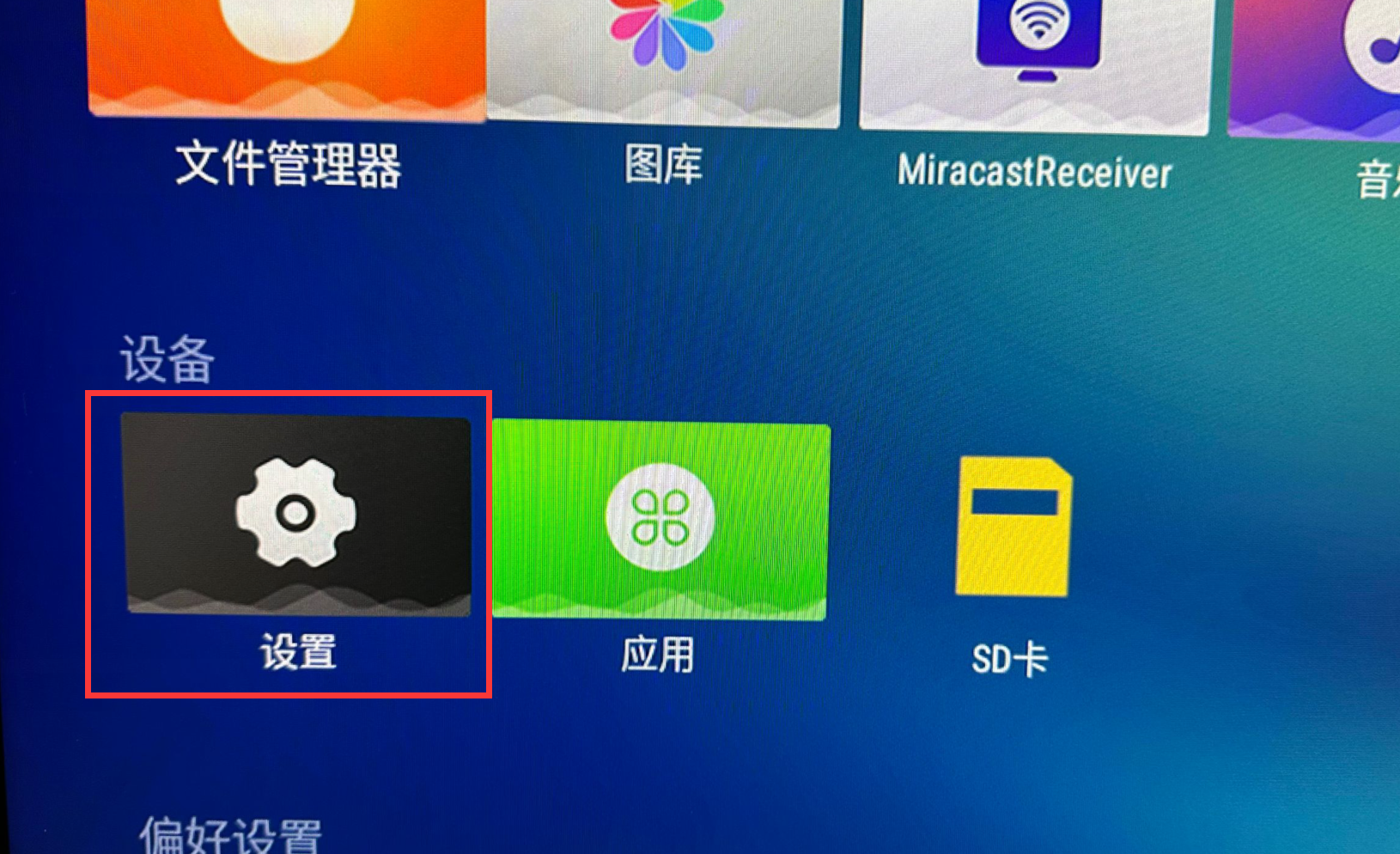
WiFi
Click Settings:
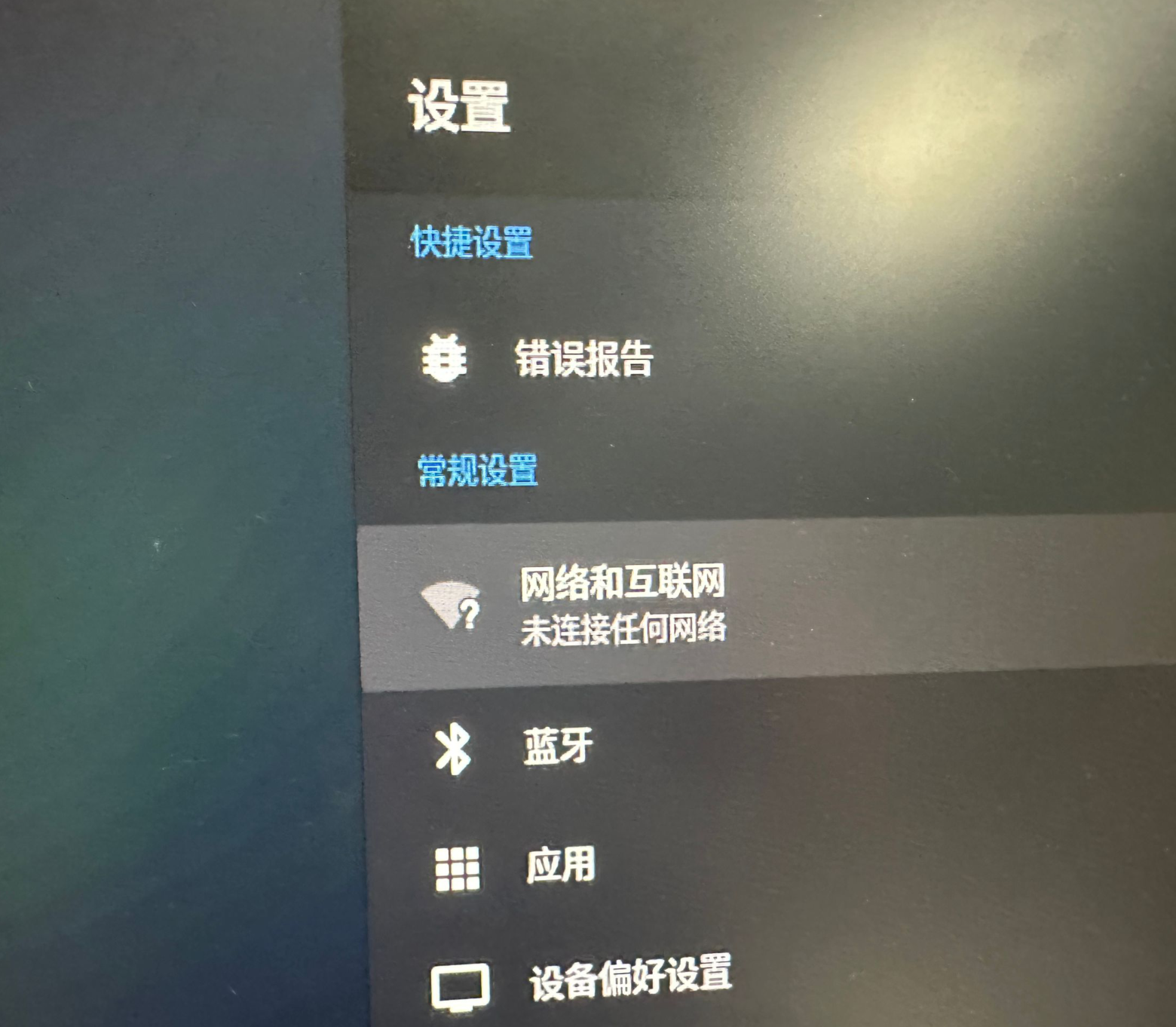
In the sidebar that appears, select Network & Internet:
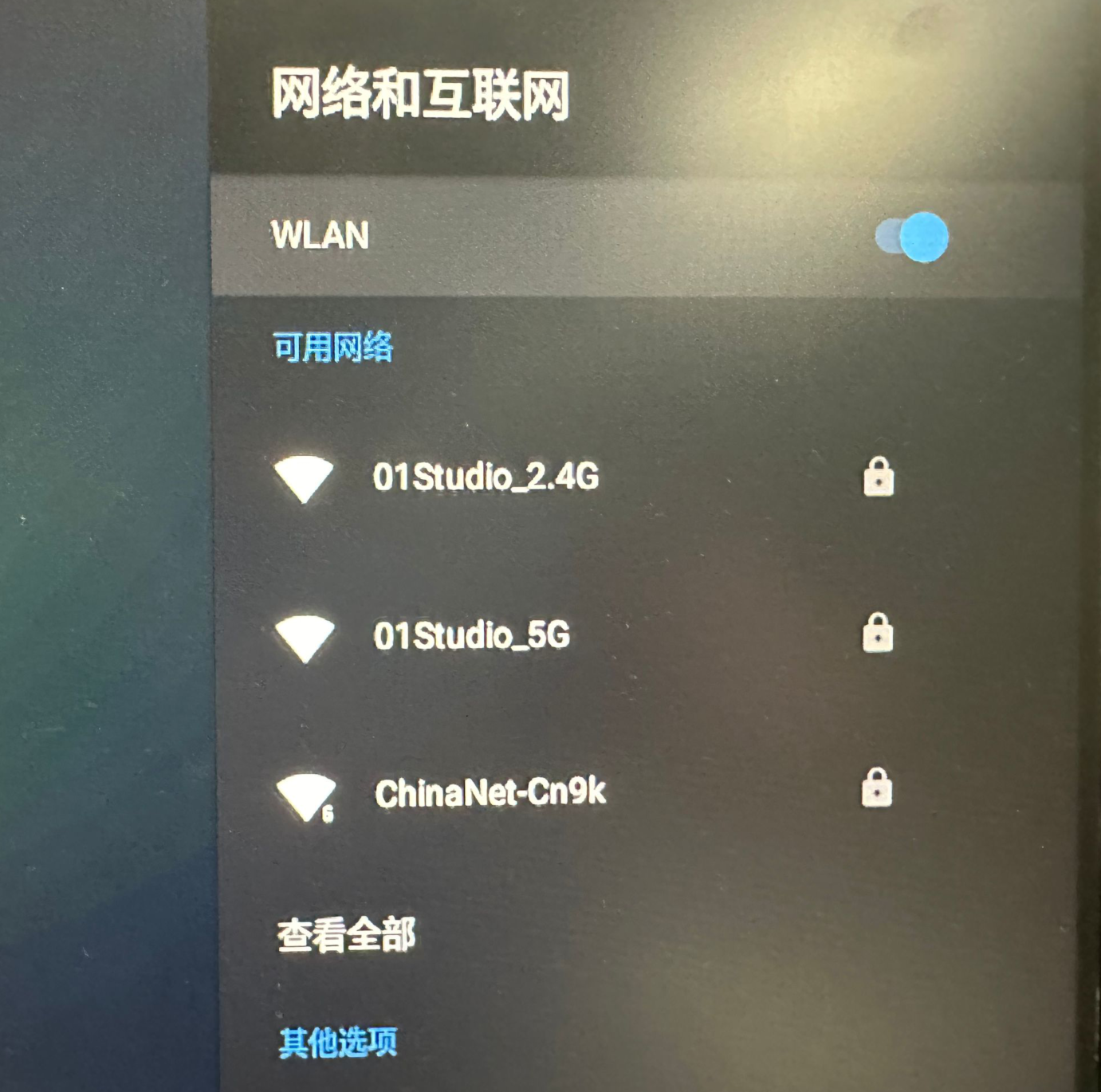
Select the discovered WiFi SSID and follow the prompts to enter the password to connect:
Ethernet
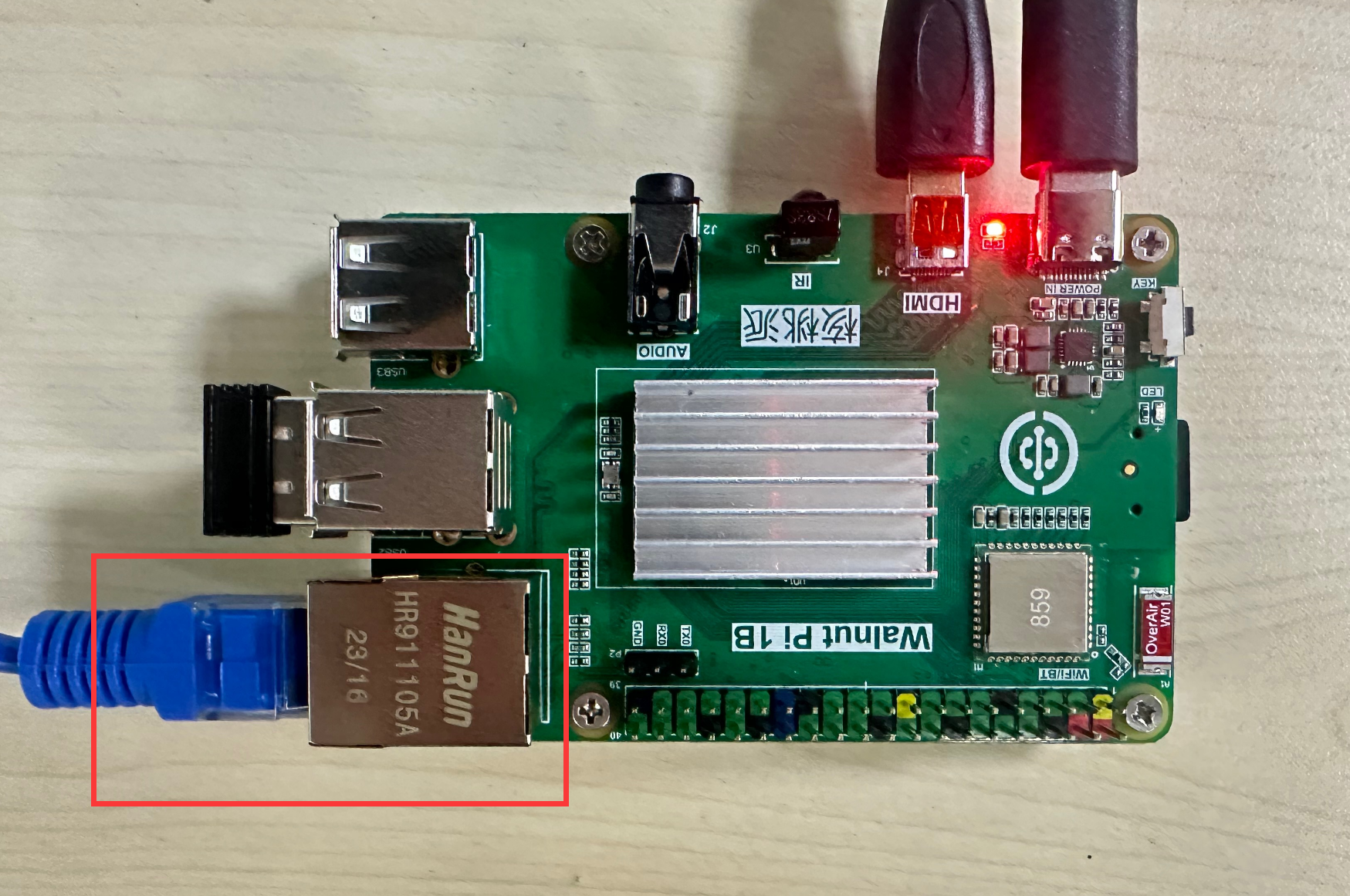
Simply plug the Ethernet cable into the WalnutPi's Ethernet port. After connection, the network port indicator light will turn on.
Connecting Bluetooth Devices
The WalnutPi Android system can connect to various Bluetooth devices such as Bluetooth keyboards, mice, Bluetooth speakers, etc.
Click Settings:
In the sidebar that appears, select Bluetooth:

Click Pair new device to search for and pair Bluetooth devices:

USB Flash Drive File Transfer
The WalnutPi Android system supports plug-and-play USB flash drives. You can use them for copying APK installation files, photos, videos, and other files.
Insert a USB flash drive:

You will see the USB drive icon on the desktop:

You can also open it using the following method. Click: File Manager

Select the newly detected USB device:

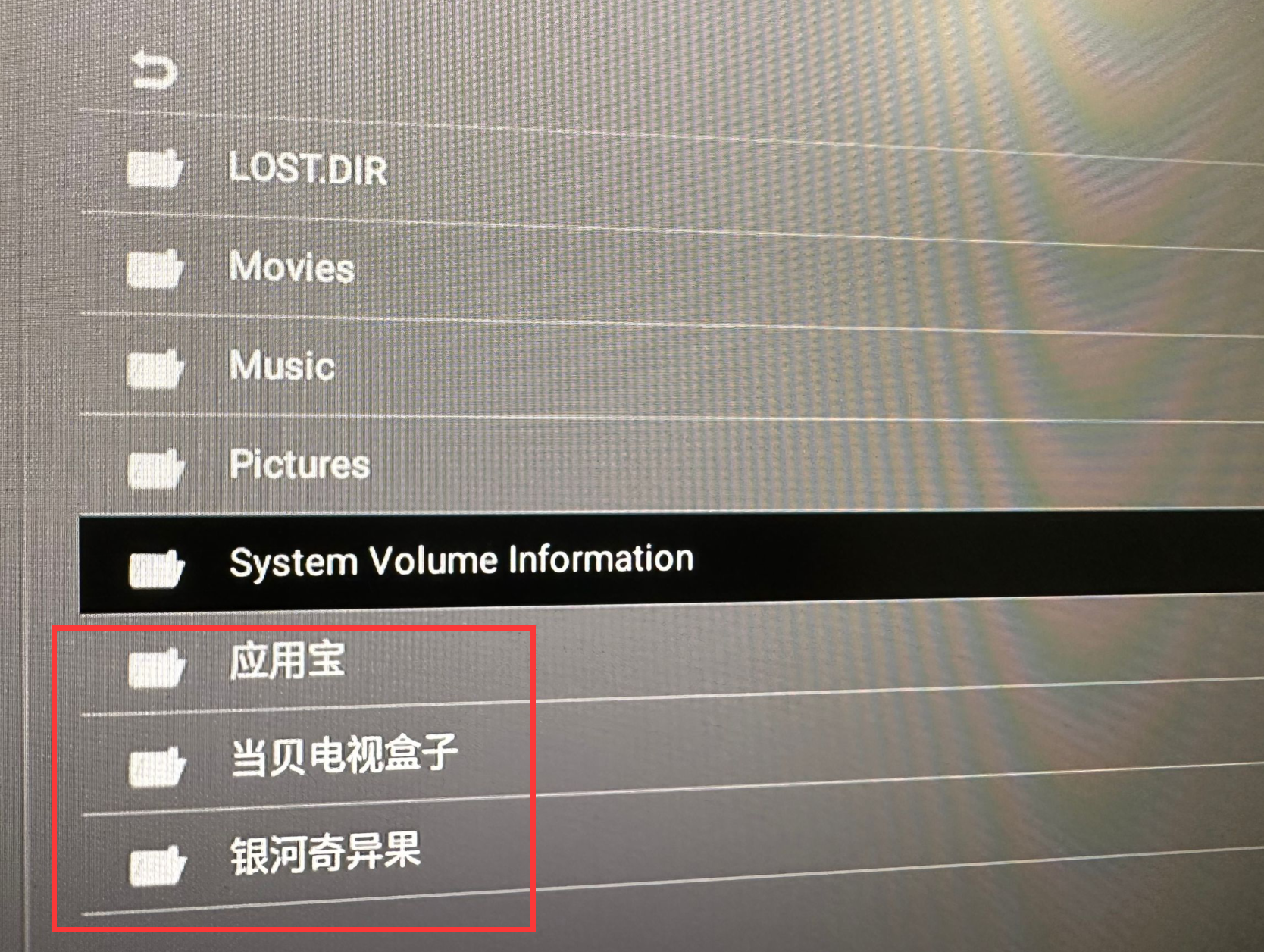
Click to enter and you will see the files on the USB drive. The other folder contents are automatically generated when the USB drive is first inserted into the WalnutPi Android system and can be ignored.
Disabling Screen Saver
If there is no operation for half an hour, the WalnutPi Android system will enter screen saver mode, making it impossible to operate. You can disable the screen saver using the following method.
Click Settings:
Click Device Preferences:

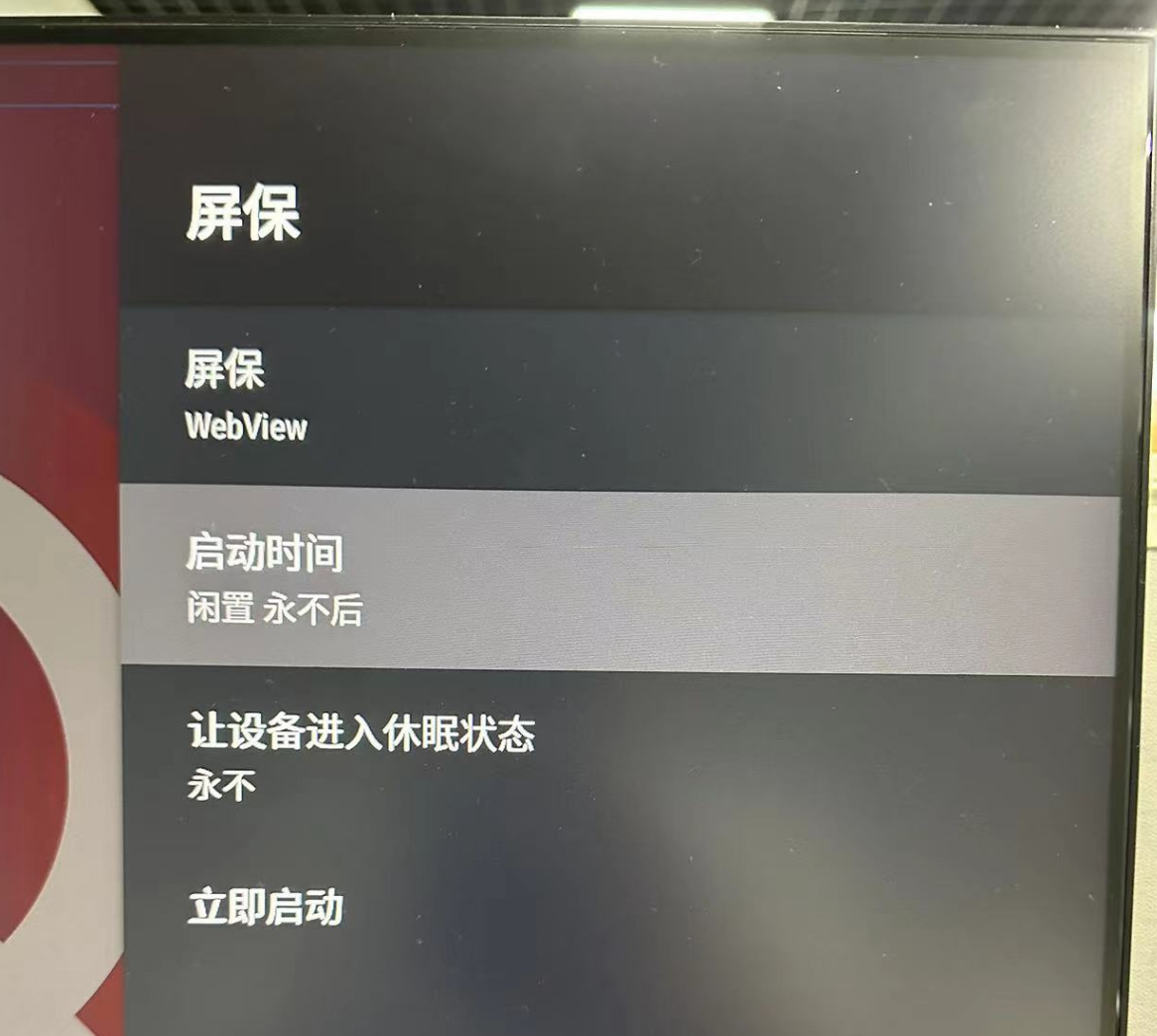
Click Screen saver:

Set the screen saver start time to Never.
Users can explore and test more features on their own.