Switching GPIO Functions
Some pins have I2C, UART, SPI and other functions. You need to use the set-device command to enable them before using Python or C for embedded programming.
The working principle of set-device is based on Linux's device tree overlay feature. We have written configuration files (.dtb) that contain information such as "configure pin XX as SPI and enable the corresponding driver." This command controls which configuration files (.dtb) the system loads at boot.
Note that some drivers are mutually exclusive. For example, enabling the 3.5-inch display occupies SPI1, so you cannot use the spidev1.0 driver at the same time. If you configure pins 38/40 of the WalnutPi 1B as UART4, those pins cannot use the hardware PWM function.
For example, the PI13 pin can be configured as pwm3 or uart4_txd, but if you set it to uart4_txd, the other function becomes unavailable.
View GPIO Device Status
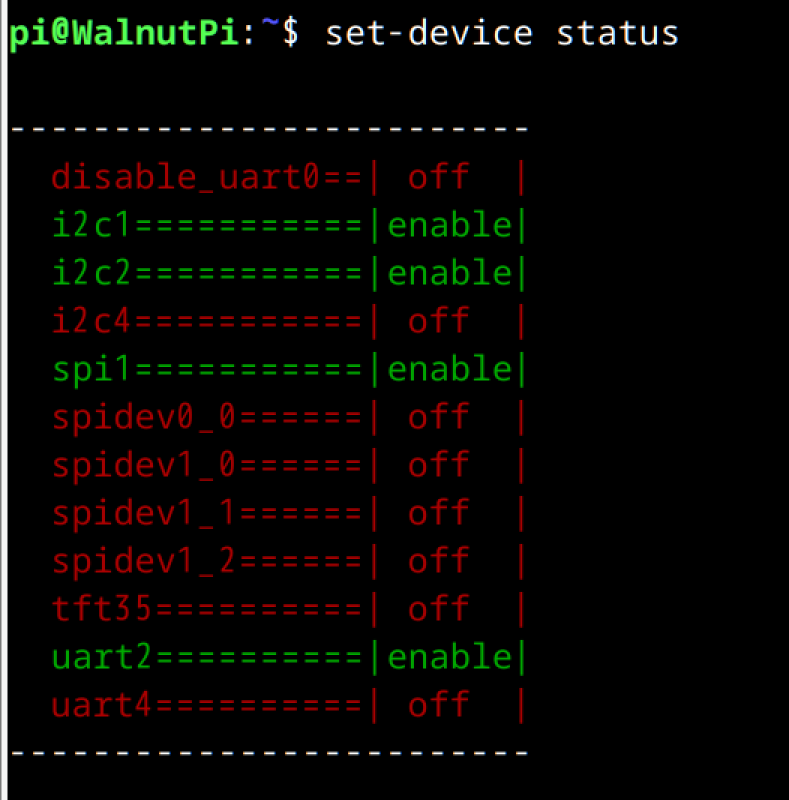
Use the following command to view the status of all GPIO devices:
set-device status
- Status off: the item is not active
- Status enable: the corresponding pins will be configured and the driver will be enabled.
Enable a GPIO Device
Use the following command to enable a specific GPIO device:
sudo set-device enable xx
Example: enable uart4
sudo set-device enable uart4
After enabling, reboot the board for the changes to take effect:
sudo reboot
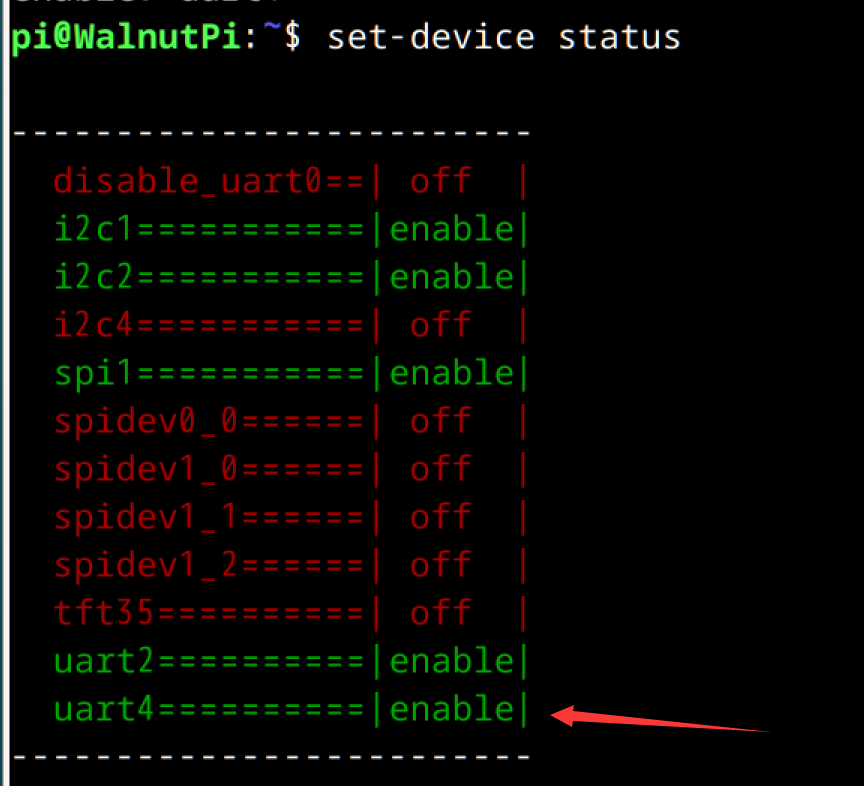
After running the above commands, use set-device status to see that the uart4 device has been enabled.
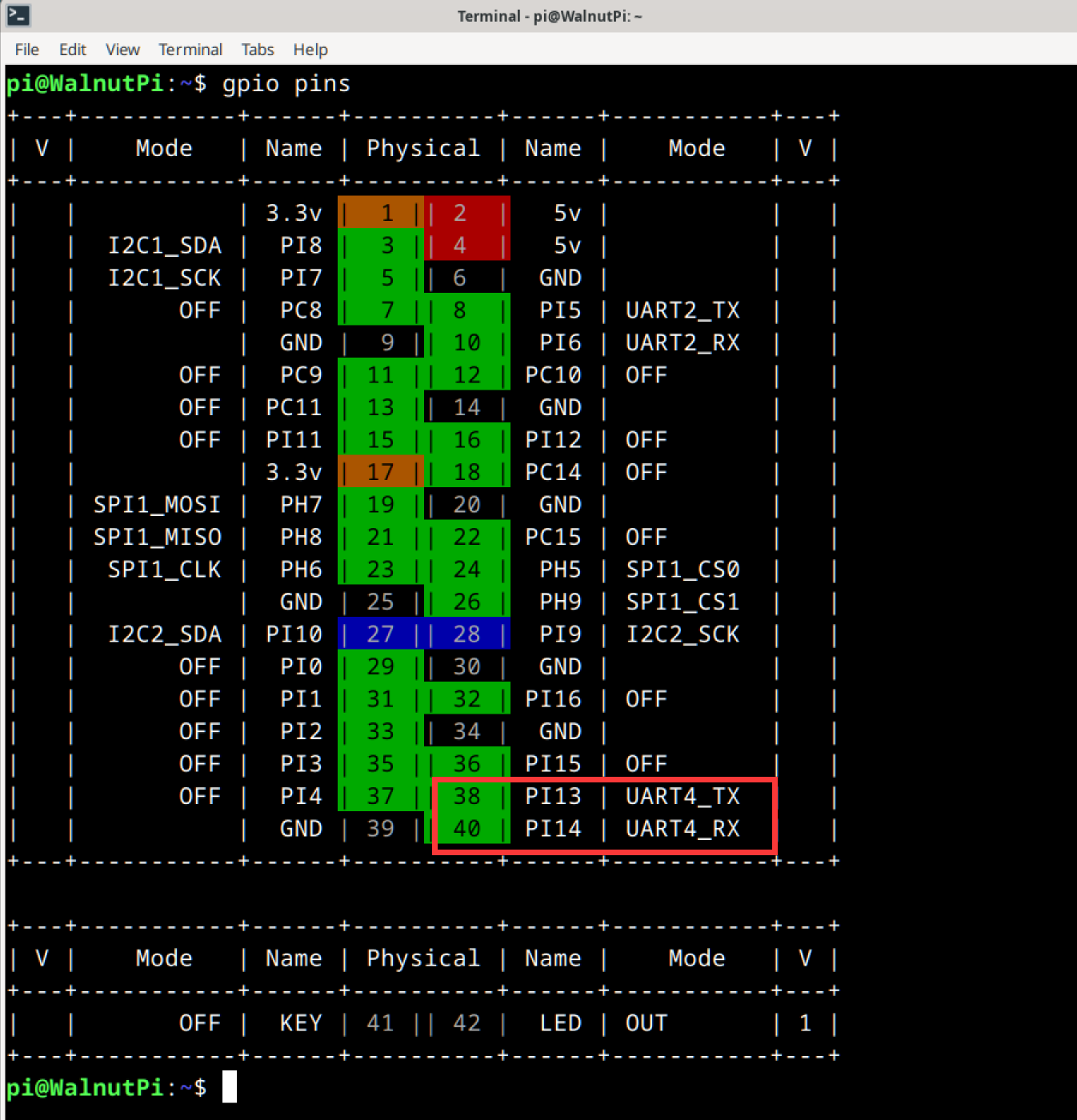
Running gpio pins will also show that the corresponding pins on the WalnutPi 1B have been switched to the appropriate operating mode.
Disable a GPIO Device
Use the following command to disable a specific GPIO device:
sudo set-device disable xx
After disabling, reboot the board for the changes to take effect:
sudo reboot