Compiling C Code on the Board
Command Line Method
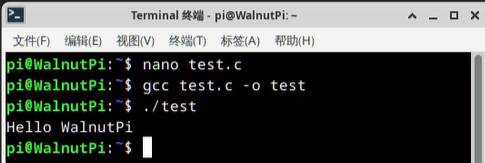
First, create a test.c file in the current directory on the WalnutPi and enter the following content (this code prints "Hello WalnutPi" in the terminal):
#include <stdio.h>

int main (void)
{
  printf ("Hello WalnutPi\n") ;

  return 0 ;
}
To compile the code, use the gcc command, which is very simple. For example, to compile test.c into an executable named test, just run:
gcc test.c -o test
Run the compiled program:
./test
You will see the terminal print: Hello WalnutPi:
Geany IDE (Local on WalnutPi)
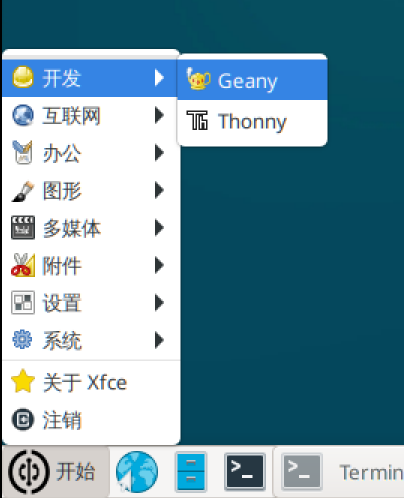
The WalnutPi desktop system comes with Geany IDE pre-installed, located under Start > Development. You can use Geany for C programming, compilation, and execution.
Open Geany:
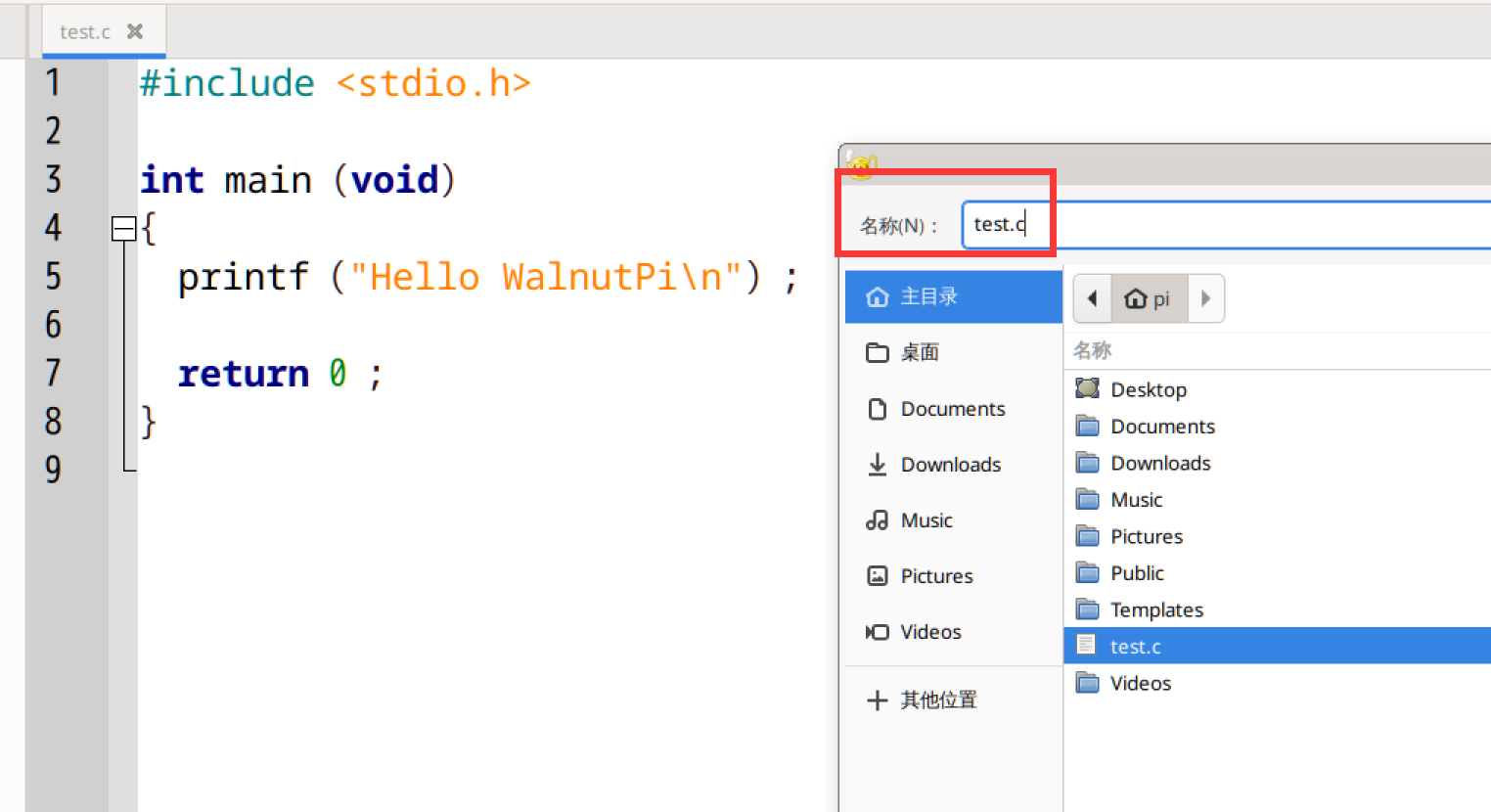
Create a new file, enter the test code below, and save it as a .c file.
#include <stdio.h>

int main (void)
{
  printf ("Hello WalnutPi\n") ;

  return 0 ;
}
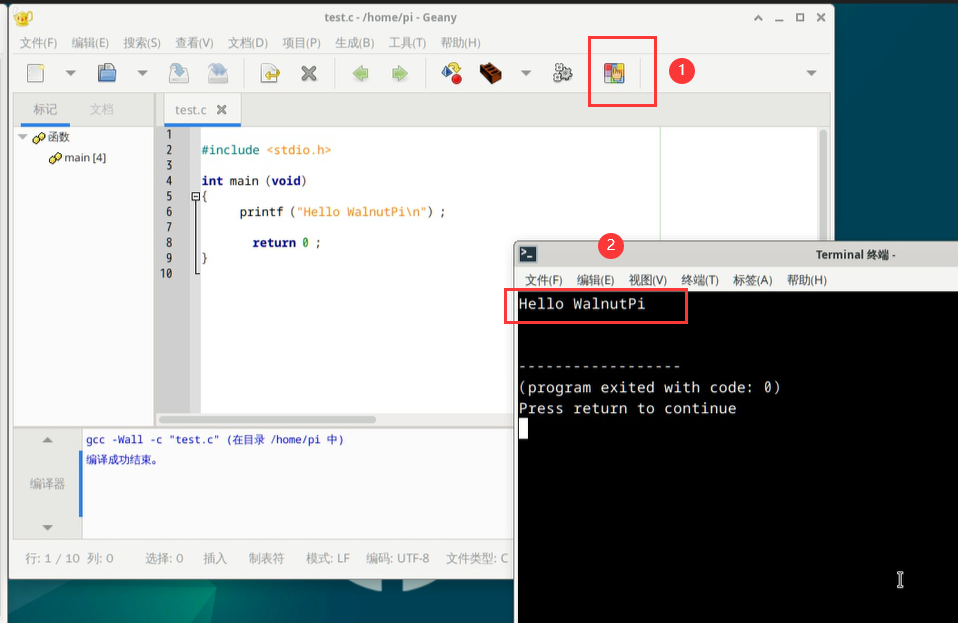
Click the Build button to see the compilation results in the lower panel. If compilation is successful, an executable file will be generated in the current directory.
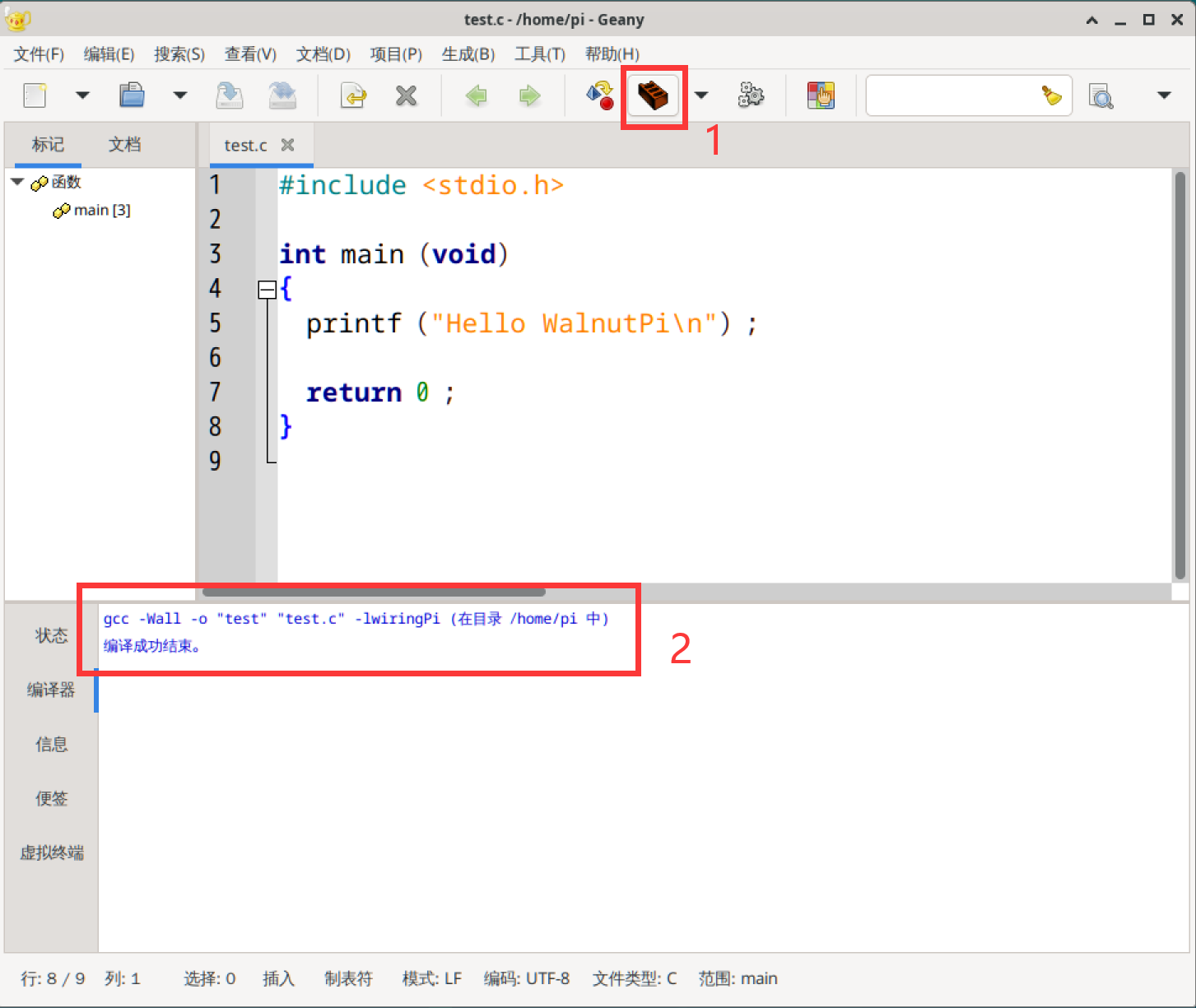
Click the Execute button to run the compiled executable. A new terminal window will pop up displaying the "Hello WalnutPi" message.