USB Drive Mounting
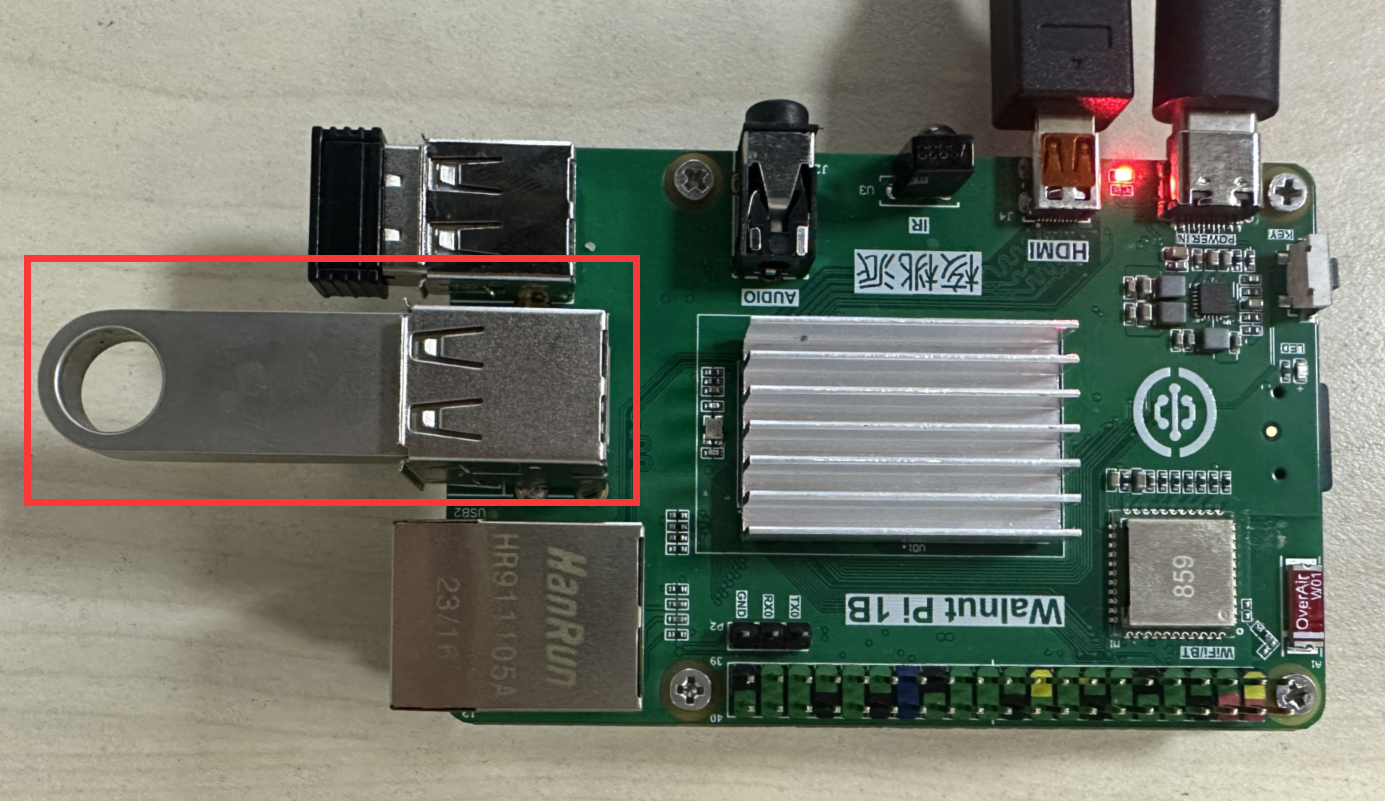
Insert the USB drive into one of the Walnut Pi's USB ports.
Desktop Edition
The Desktop edition behaves similarly to a Windows PC: after inserting a USB drive, a semi-transparent USB drive icon will appear on the desktop.
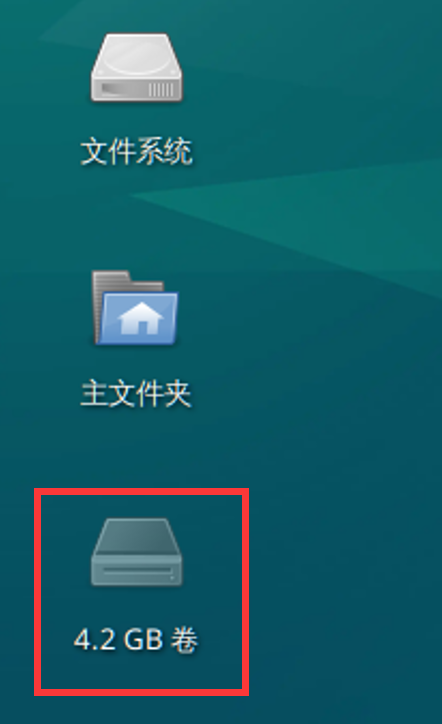
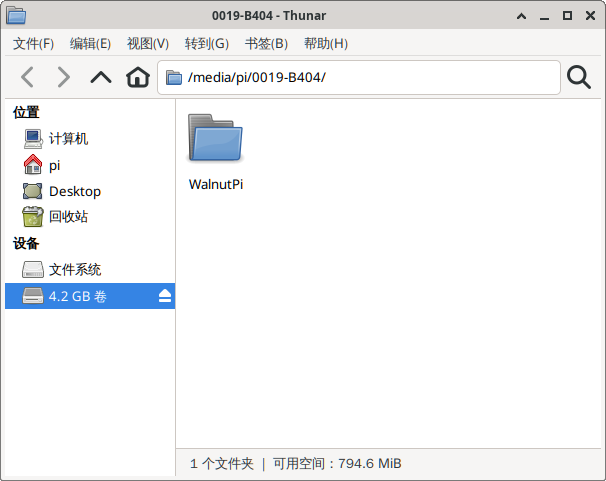
Simply double-click the icon to mount and open the USB drive. You will see that the USB drive is located under the /media/pi/ directory:
Server Edition (Headless)
On the Server edition, you can use commands to mount the USB drive. (This method also works on the Desktop edition)
After inserting the USB drive, first check its information:
sudo fdisk -l
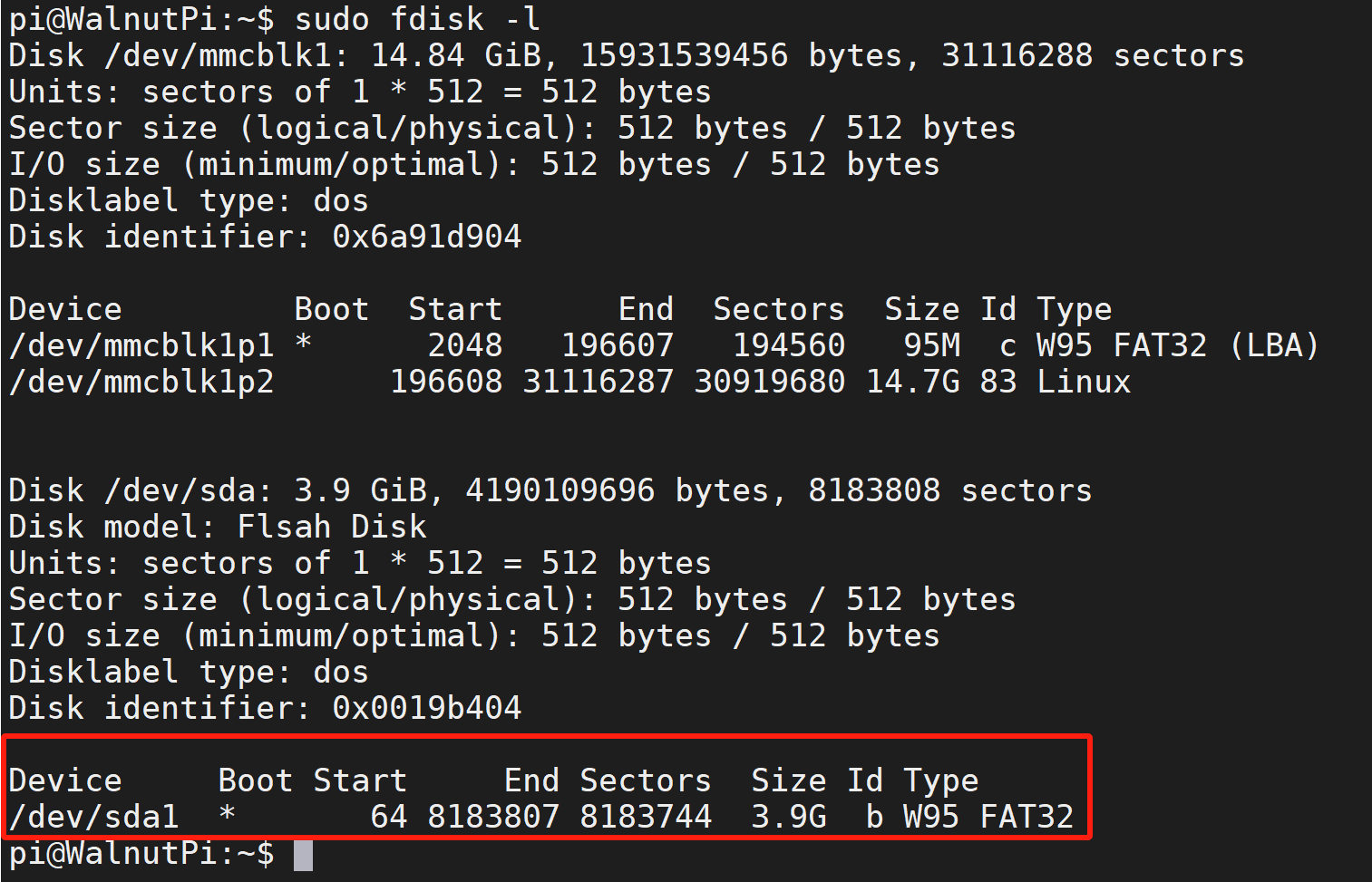
In this example, a 4GB USB drive is used. From the image above, you can see the device is: /dev/sda1.
Once you know the USB drive's device name, you can mount it using the mount command, typically to the /media or /mnt directory:
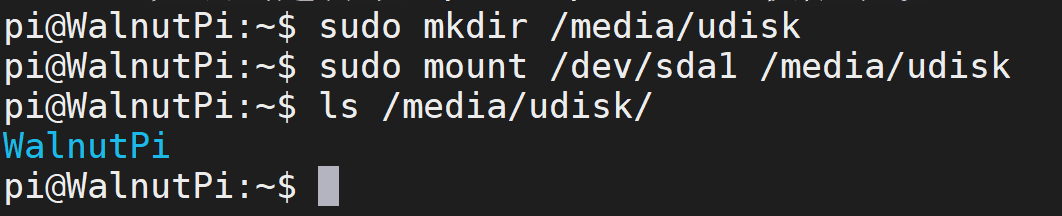
First, create an empty folder under /media. You can name it anything you like; here we'll use "udisk":
sudo mkdir udisk
Mount the USB drive:
sudo mount /dev/sda1 /media/udisk
Once mounted successfully, use the "ls" command to view the contents of the USB drive, confirming it is mounted successfully.
ls /media/udisk
You can unmount the USB drive with the following command:
sudo umount /media/udisk