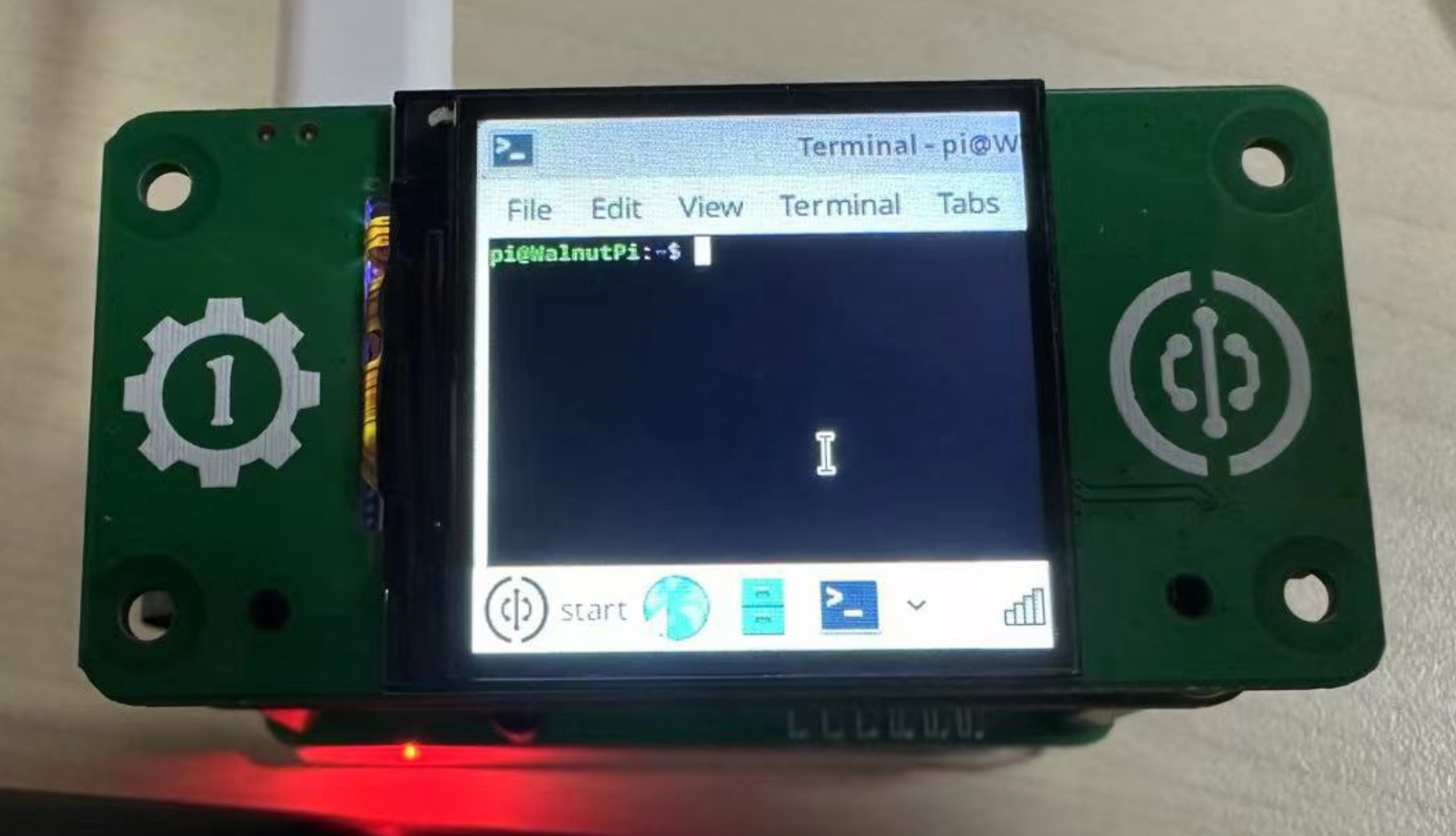
1.54-inch Display
- Video Tutorial
The Walnut Pi official 1.54-inch display uses the SPI bus with a maximum speed of 60MHz. The backlight is controllable, and the official driver supports system desktop display, PyQt5, and other UI functions.
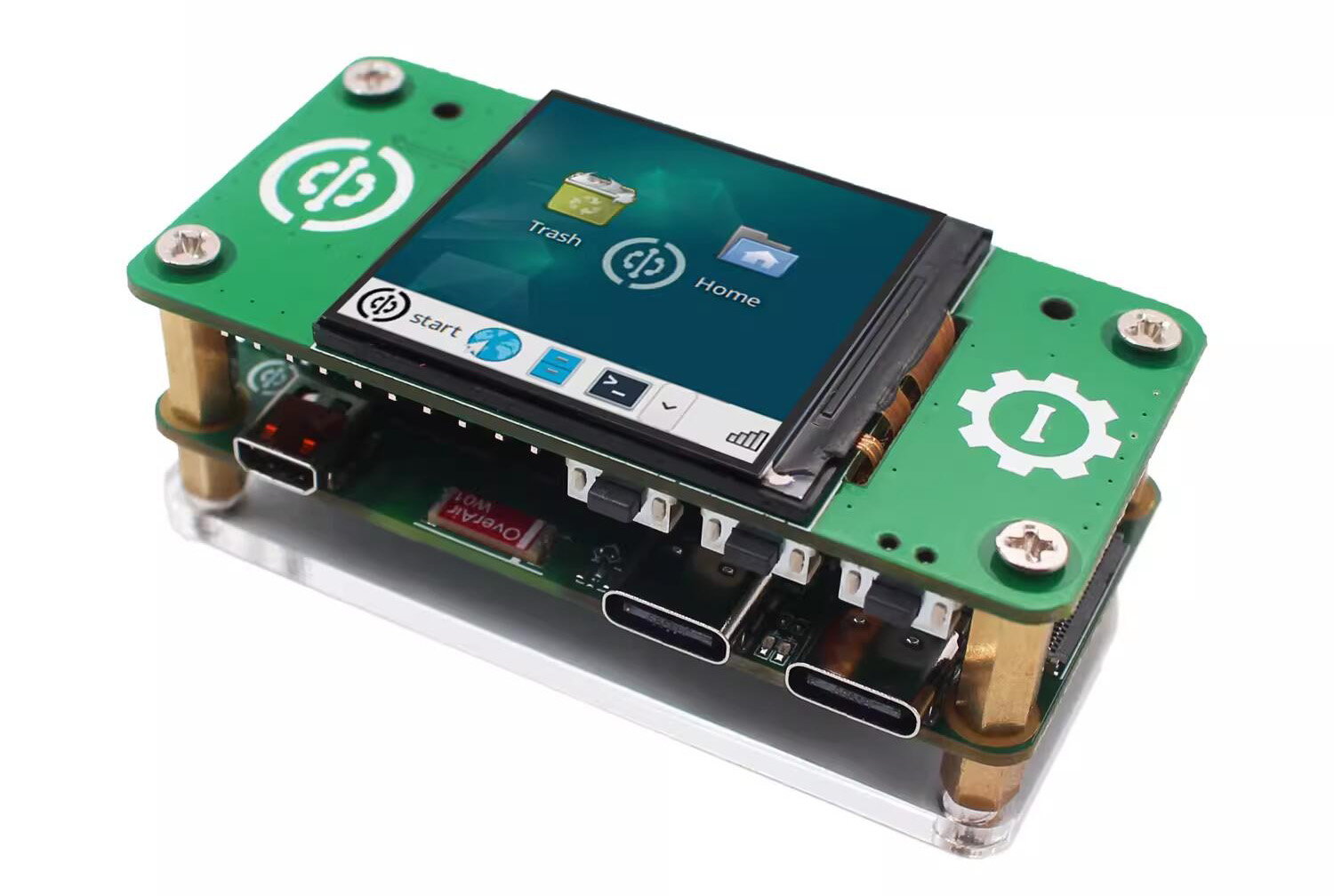
The back features 3 programmable buttons, and GPIO pins are exposed via a patch ribbon cable connector, meaning that even when plugged into the Walnut Pi, you can still connect I2C, serial communication devices, and other modules.
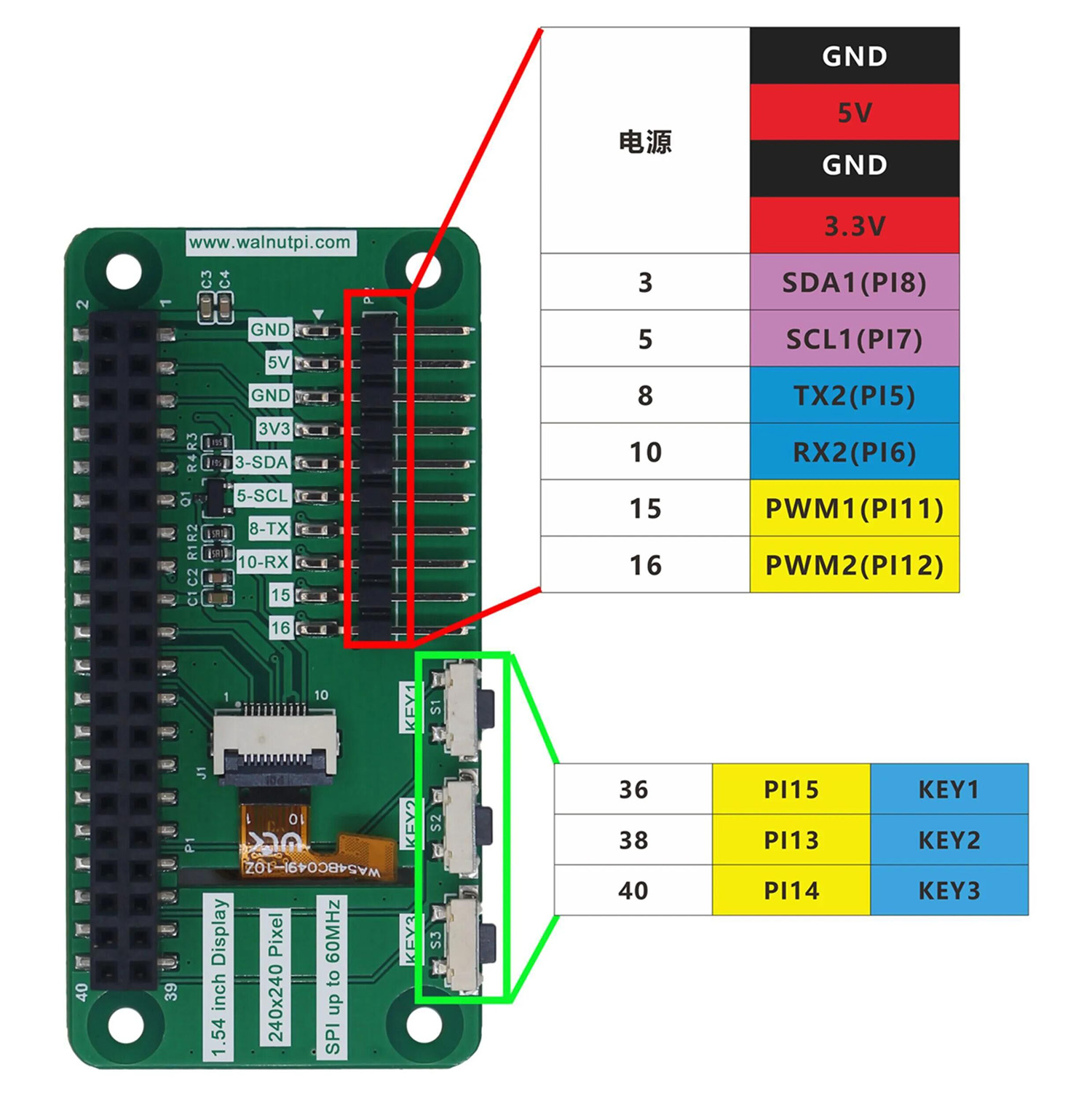
| Specifications | |
|---|---|
| Resolution | 240x240 (Pixels) |
| Interface | 4-wire SPI (max speed: 60MHz) |
| Display IC | st7789 |
| Operating Temperature | -20℃ ~ 60℃ |
| Storage Temperature | -30℃ ~ 70℃ |
| Dimensions | 65x32mm |
| Weight | 14g |
- Pinout:
| Pin No. | Label | Description |
|---|---|---|
| 1, 17 | 3.3V | Power Positive (3.3V Input) |
| 2, 4 | 5V | Power Positive (5V Input) |
| 6, 9, 14, 20, 25 | GND | Power Ground |
| 18 | LCD_DC | Command/Data Select, LOW=Command, HIGH=Data |
| 19 | SPI_MOSI | LCD SPI Data Input |
| 21 | SPI_MISO | Touch Panel SPI Data Output |
| 22 | RST | Reset |
| 23 | SPI_CLK | LCD/Touch Panel Clock Signal |
| 24 | LCD_CS | LCD Chip Select, Active LOW |
Enabling LCD Display
The Walnut Pi system already includes the relevant display drivers, supported on both Desktop and Server editions. Use the following command to enable desktop display (supports TAB auto-completion):
sudo set-lcd lcd15-st7789 install
After configuration, reboot the board:
sudo reboot
You can also configure this by modifying the screen parameter in /boot/config.txt: screen=lcd15-st7789. config.txt Display Configuration Tutorial
Unplug the HDMI cable, wait patiently for the system to boot, and you will see the desktop interface on the LCD (Server edition displays the terminal), shown in the default orientation below:
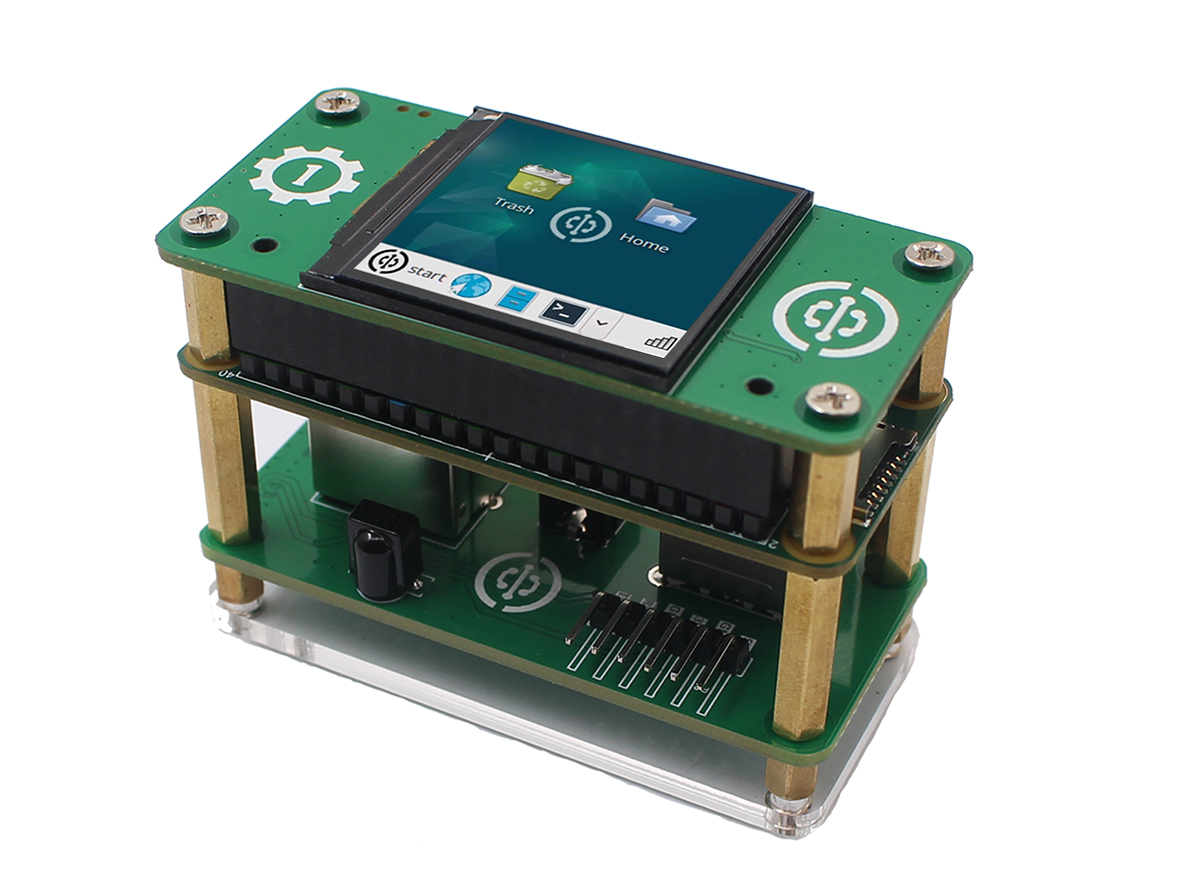
The above command works for both the Walnut Pi Desktop edition and Server edition (the Server edition will display the terminal). After making this configuration, if an HDMI display is also connected, the display will take priority. To show on the LCD, you must unplug the HDMI cable.
Setting LCD Display Orientation
Use the following command to set the display orientation, supporting angles of 0, 90, 180, and 270 degrees. The default is 270 degrees. For the Desktop edition, 270 or 90 is recommended, as portrait orientation can cause content to be truncated.
sudo set-lcd lcd15-st7789 set_rotate 270
Disabling LCD Display
Use the following command to remove the LCD display function and boot from HDMI:
sudo set-lcd lcd15-st7789 remove
Font Size Adjustment
Due to the small size and resolution of the 1.54-inch LCD, it is mainly used for terminal-based interaction (Server edition) or for PyQt5 experiments.
On the Desktop edition, you can open a terminal and use keyboard shortcuts to scale the terminal font for easier viewing:
-
Ctrl+Shift++: Increase font size -
Ctrl+-: Decrease font size