10.1-inch MIPI Display
The Walnut Pi official 10.1-inch MIPI display has a resolution of 1280x800. Buy now >>
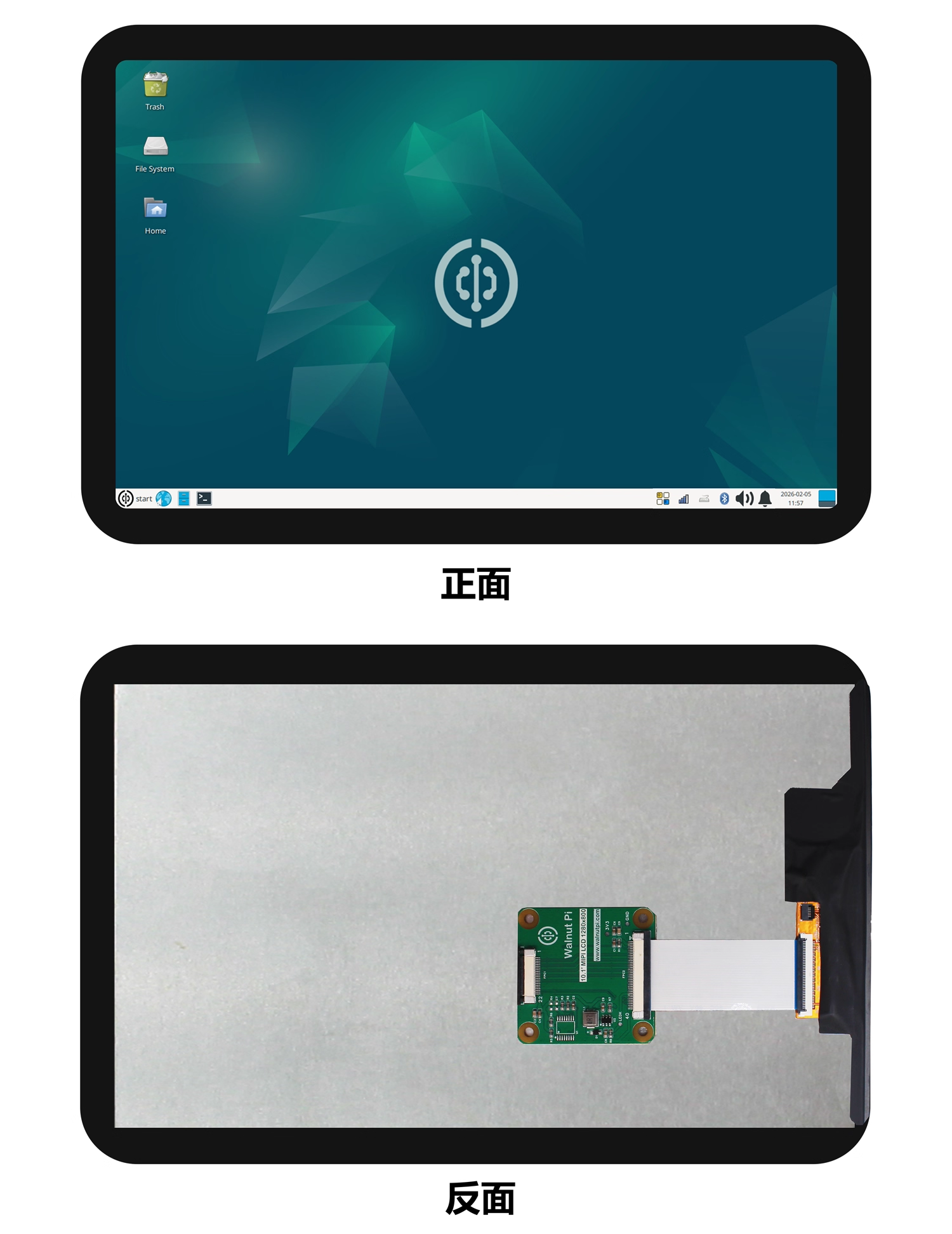
| Specifications | |
|---|---|
| Size | 10.1-inch |
| Resolution | 1280x800 |
| Viewing Angle | IPS (Full Viewing Angle) |
| Interface | MIPI 4 lane |
| Touch | Capacitive Touch Screen (Optional) |
| Operating Temperature | -20℃ ~ 60℃ |
| Storage Temperature | -30℃ ~ 70℃ |
| Dimensions | 140.24 x 226.85 x 2.4 mm (No Touch) 156.36 x 237.58 x 3.13 mm (With Capacitive Touch) |
| Weight | 226g (With Capacitive Touch) |
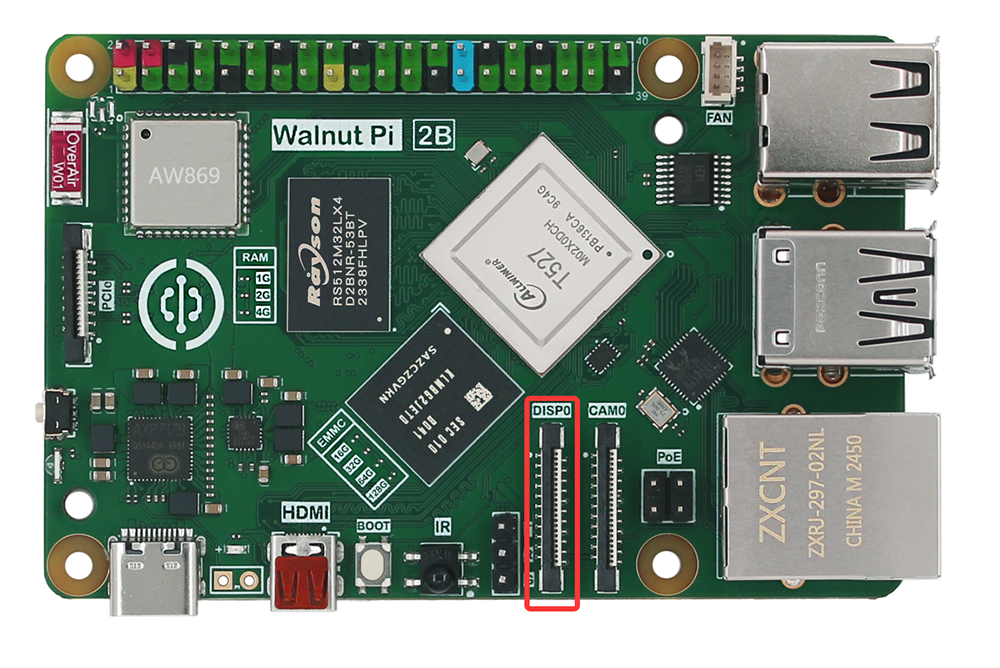
The Walnut Pi 2B has 1 MIPI DSI interface (1x4 lane DSI, 2 lane compatible), which can connect external MIPI displays, supporting up to 1080P@60fps. The interface definition is compatible with Raspberry Pi.
Assembly
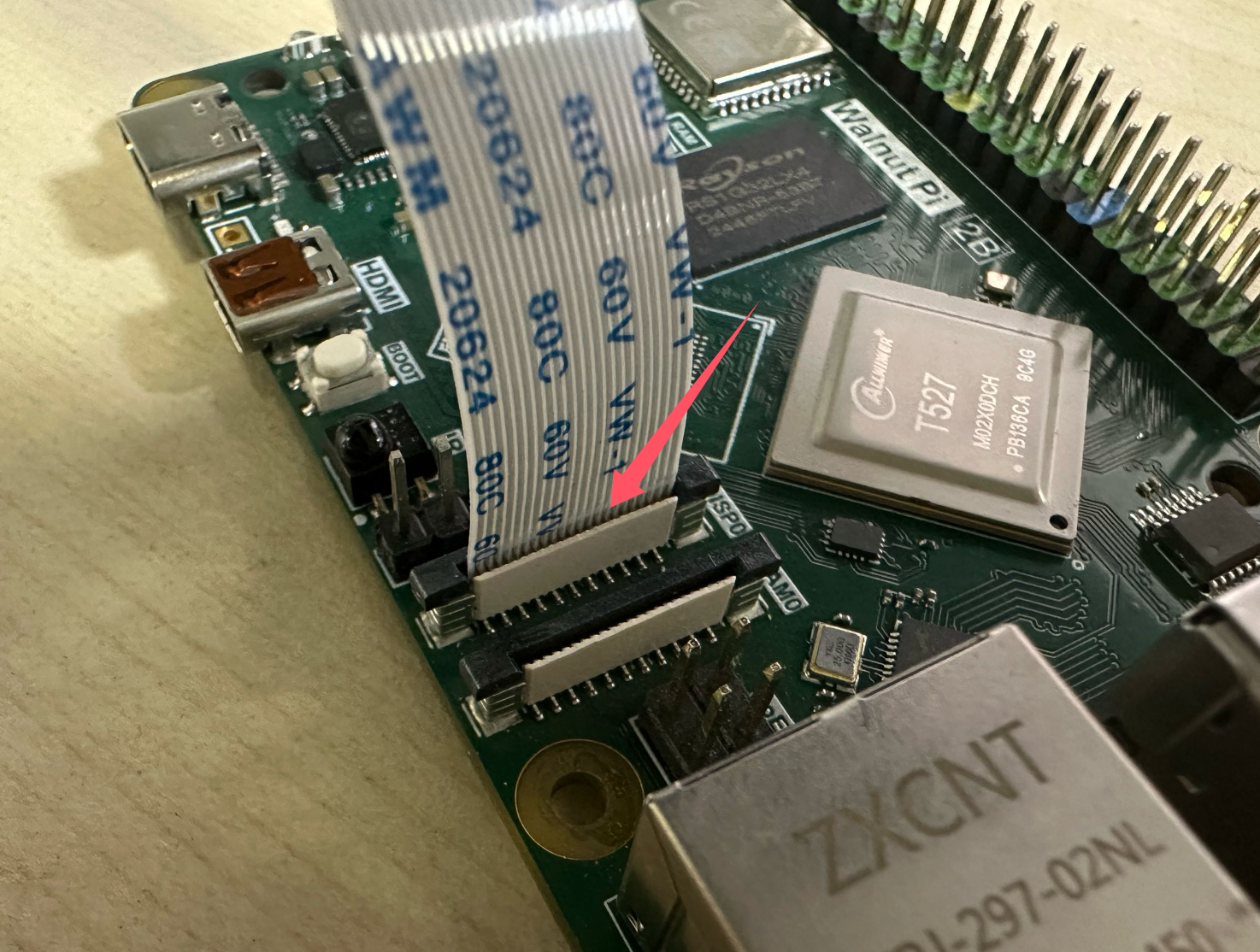
Make sure to assemble with power disconnected. First, lift the black 22P DSI latch on the Walnut Pi 2B, insert the ribbon cable with the gold fingers oriented as shown below, then push the latch down to secure it:
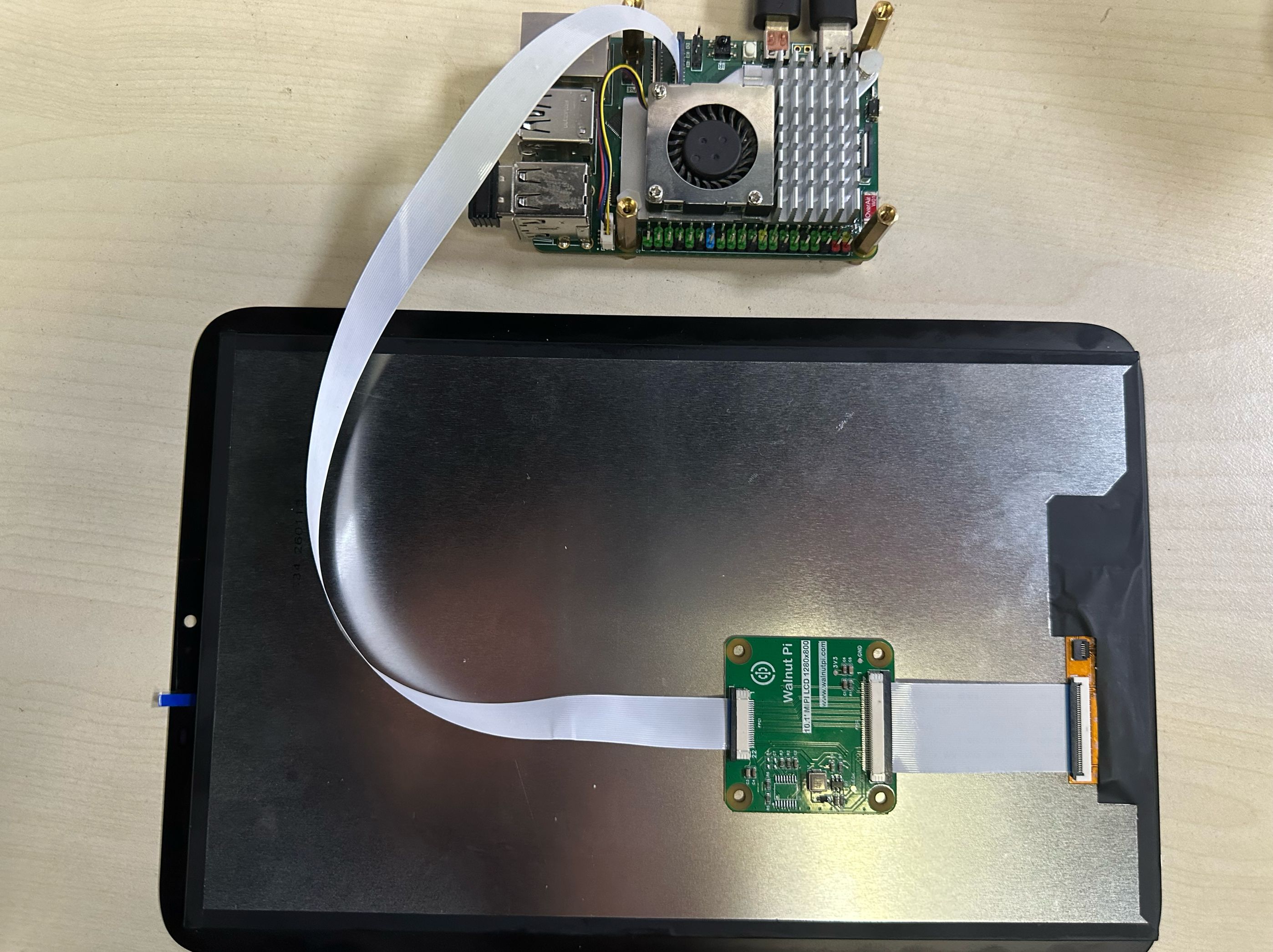
Connect the other end to the 10.1-inch MIPI display. After assembly, it should look like this:
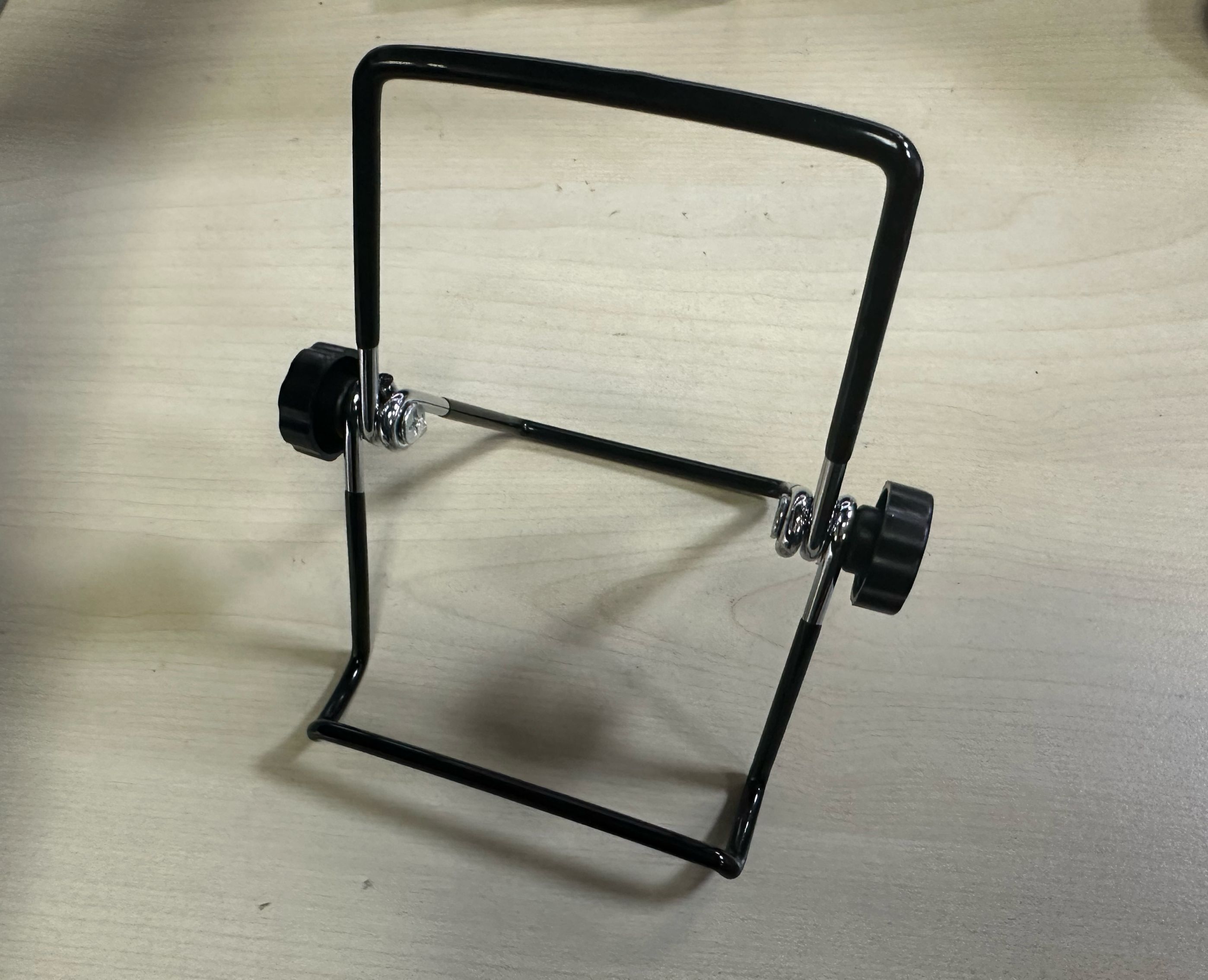
Unfold the included stand as shown below:
Simply place the display on the stand.
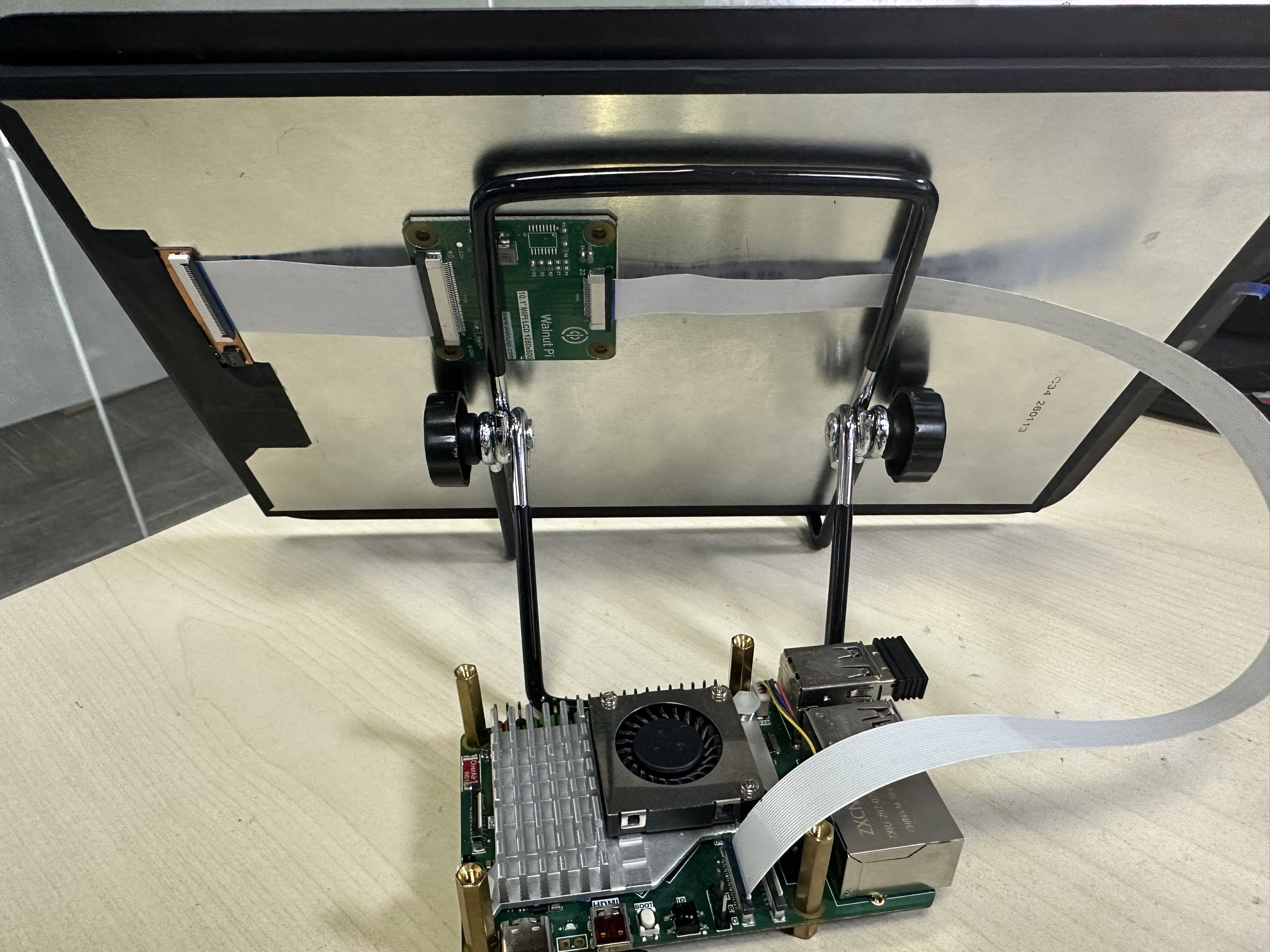
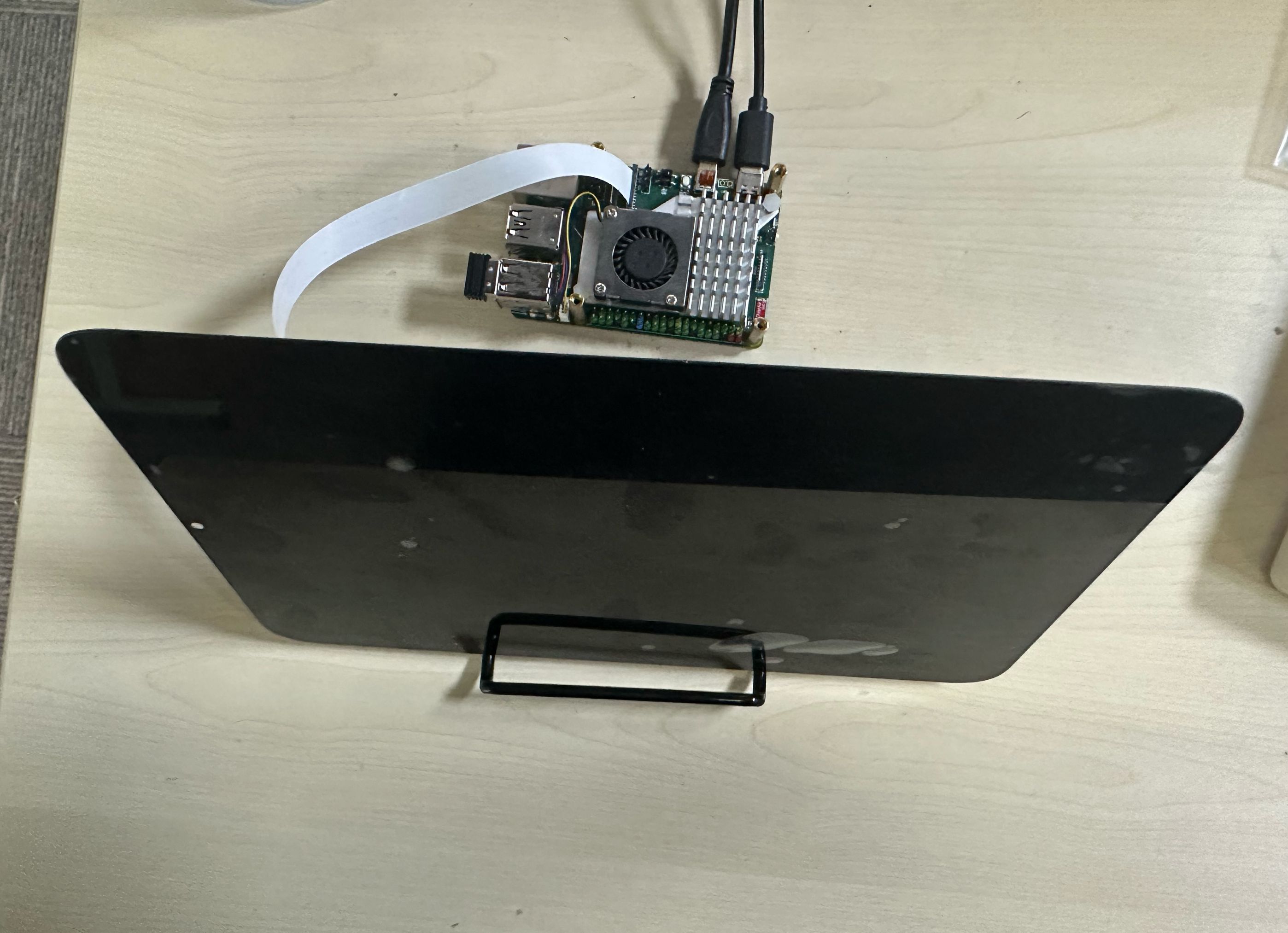
Assembly is now complete.
Enabling LCD Display
The Walnut Pi system already includes the relevant display drivers, supported on both Desktop and Server editions. Use the following command to enable desktop display (supports TAB auto-completion):
sudo set-lcd dsi-1280x800 install
After configuration, reboot the board:
sudo reboot
You can also configure this by modifying the screen parameter in /boot/config.txt: screen=dsi-1280x800. config.txt Display Configuration Tutorial
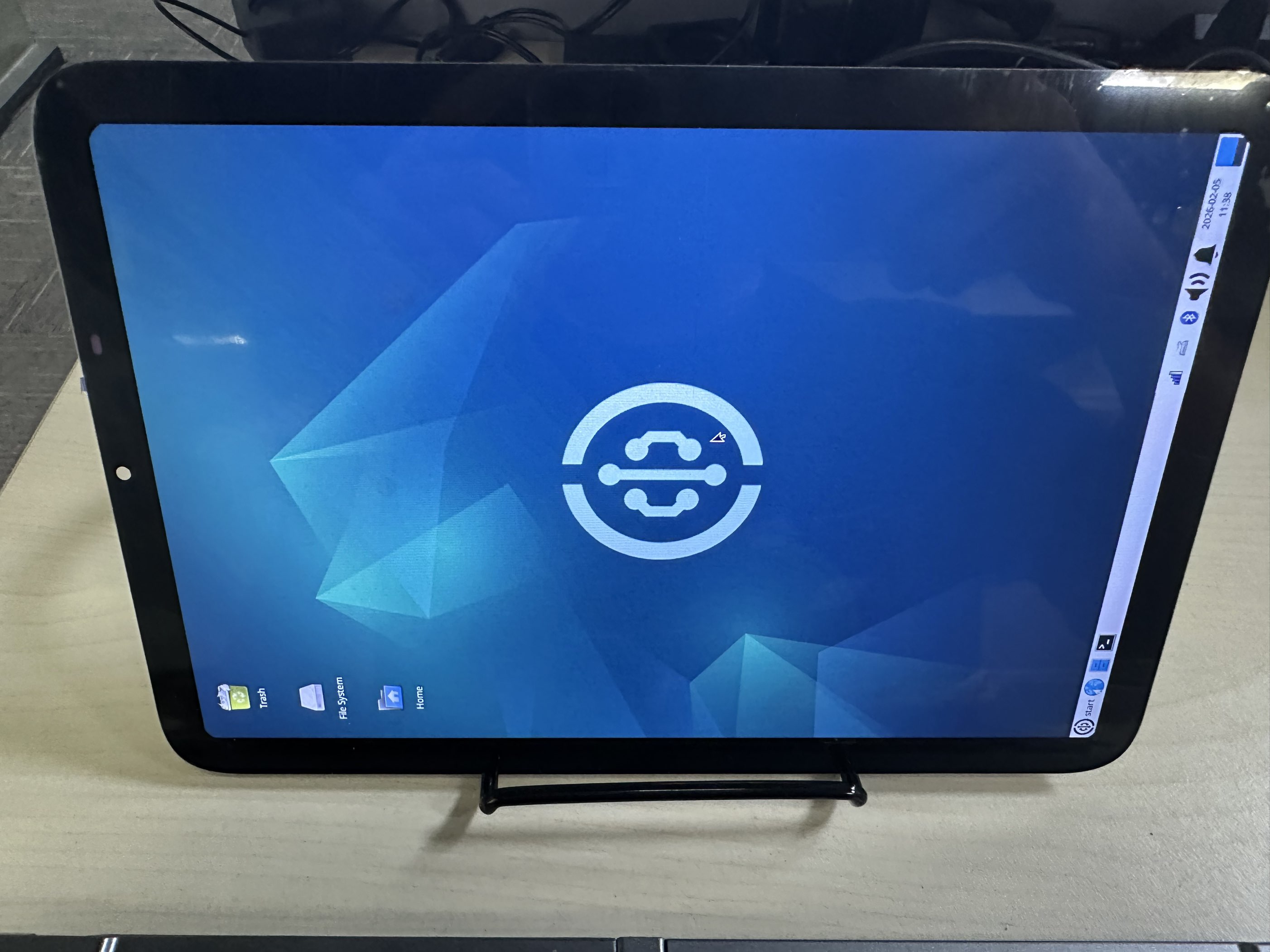
The first reboot after configuration may take a bit longer. After booting, it will appear as shown below:
Adjusting Display Orientation
Landscape Mode
The default configuration after initial setup is portrait. You can switch to landscape mode as follows:
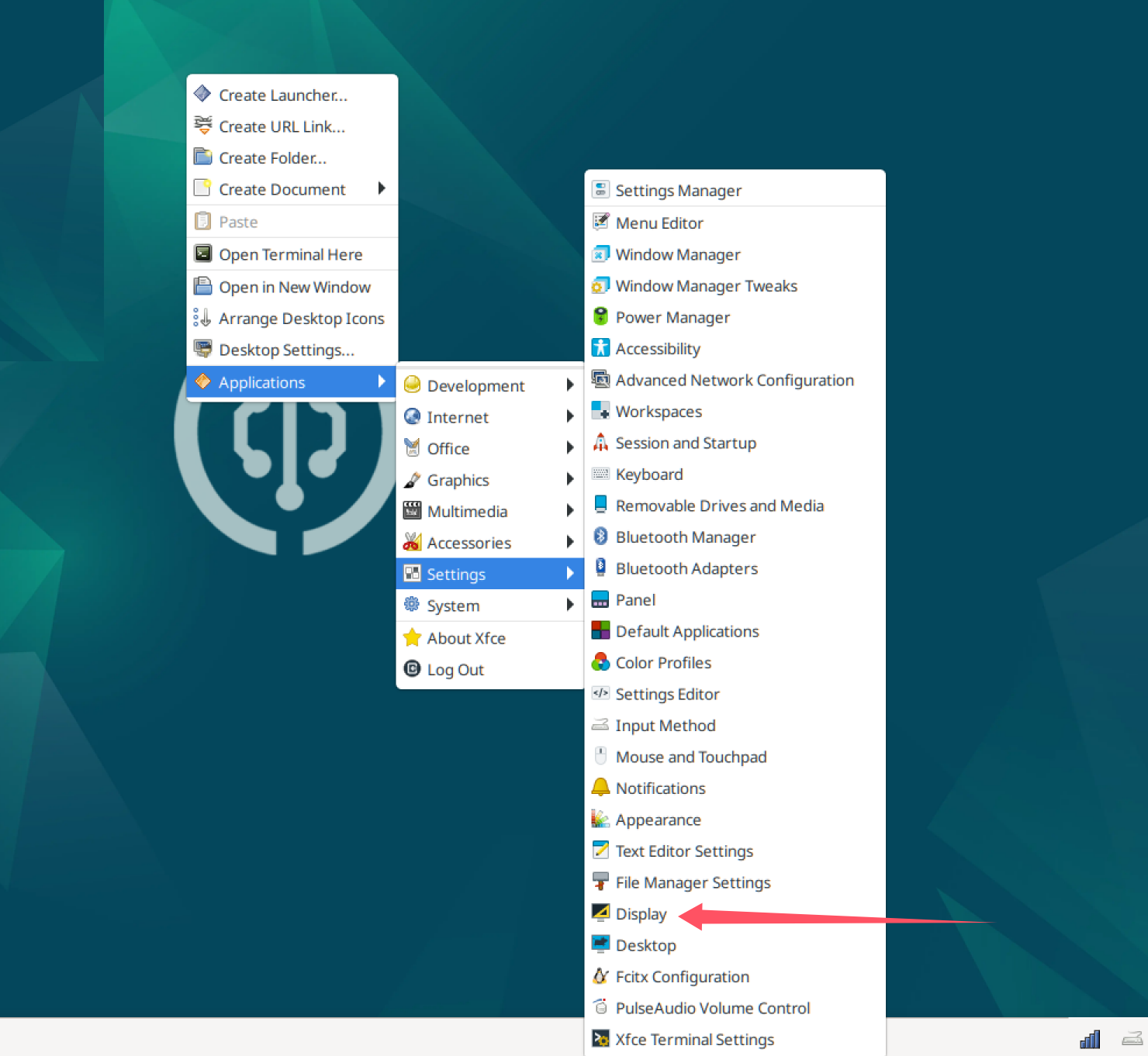
Open Settings - Display:
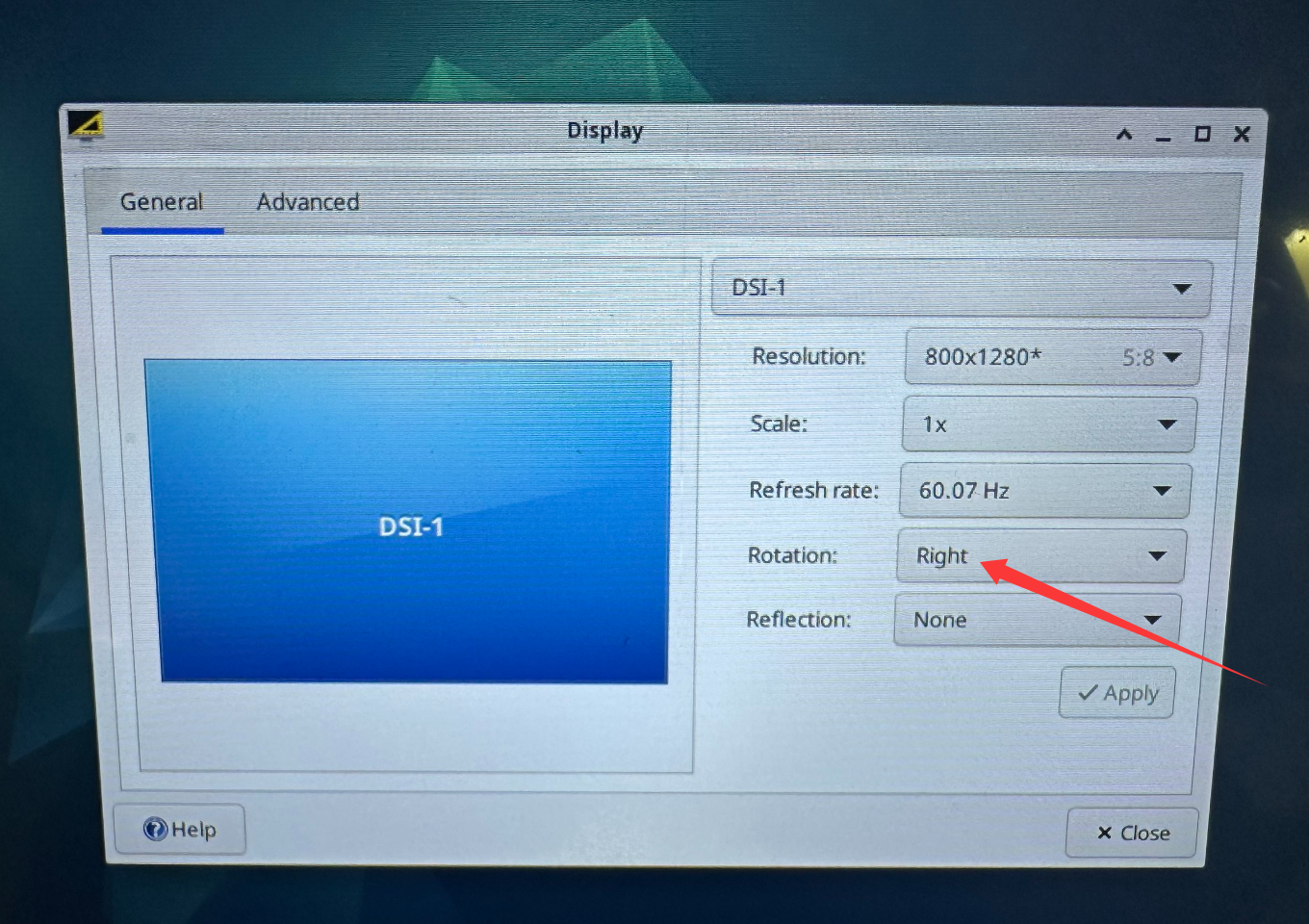
Set Rotation to Right:
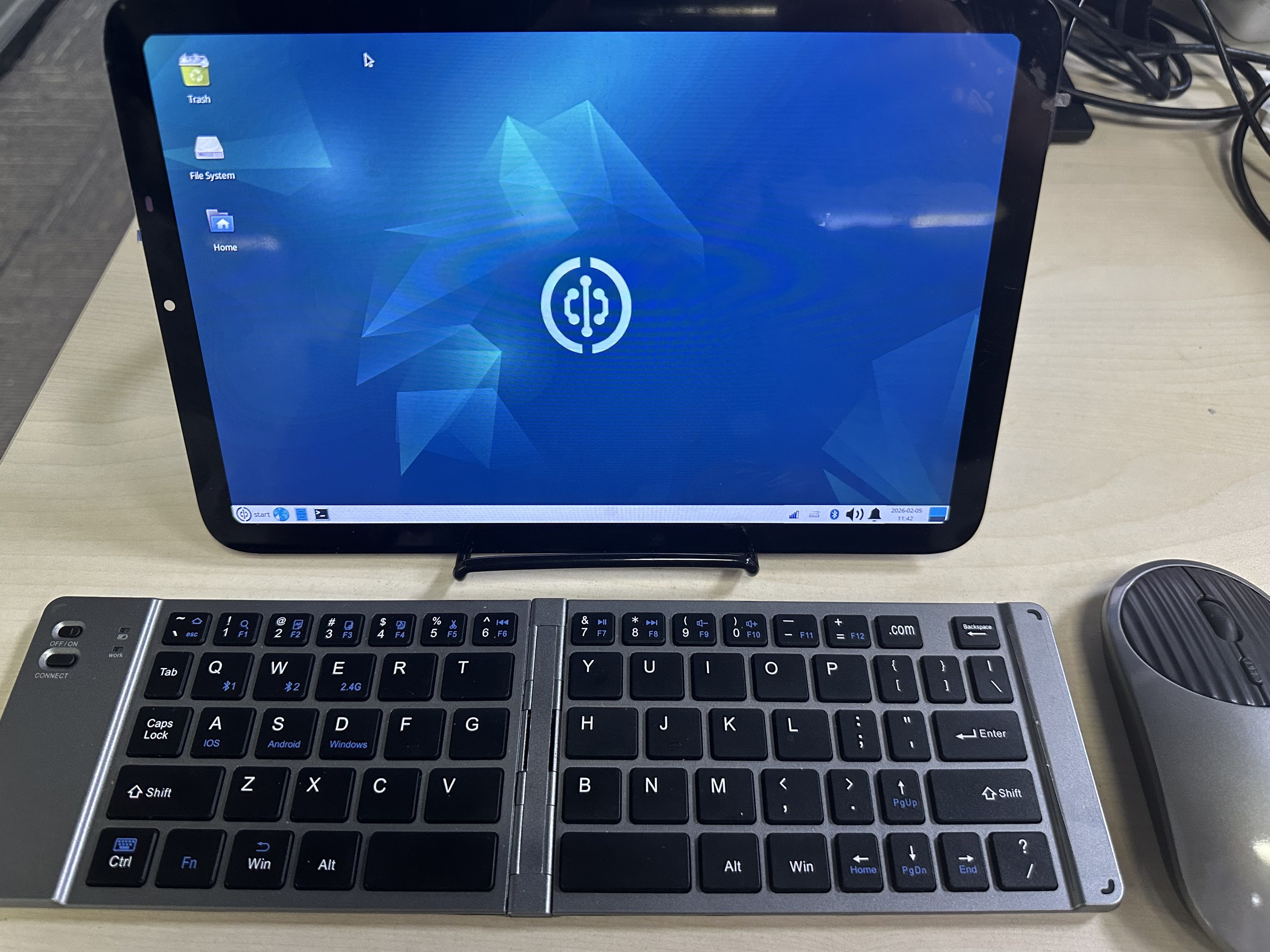
After adjustment, it will appear in landscape mode as shown below. The settings persist after reboot.
Virtual Keyboard
You can install the onboard virtual keyboard:
sudo apt install onboard
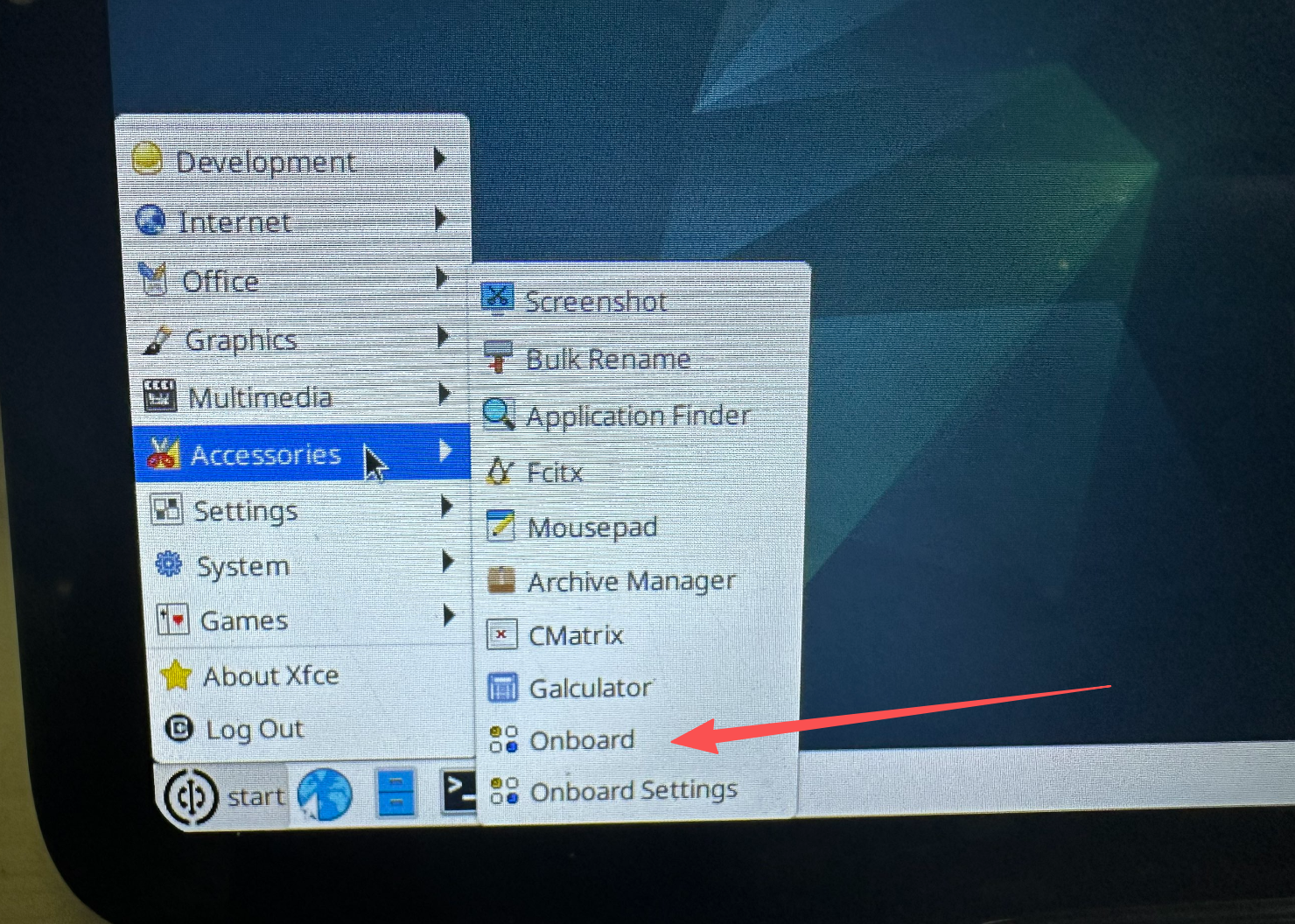
After installation, find it in the Start Menu under Accessories:
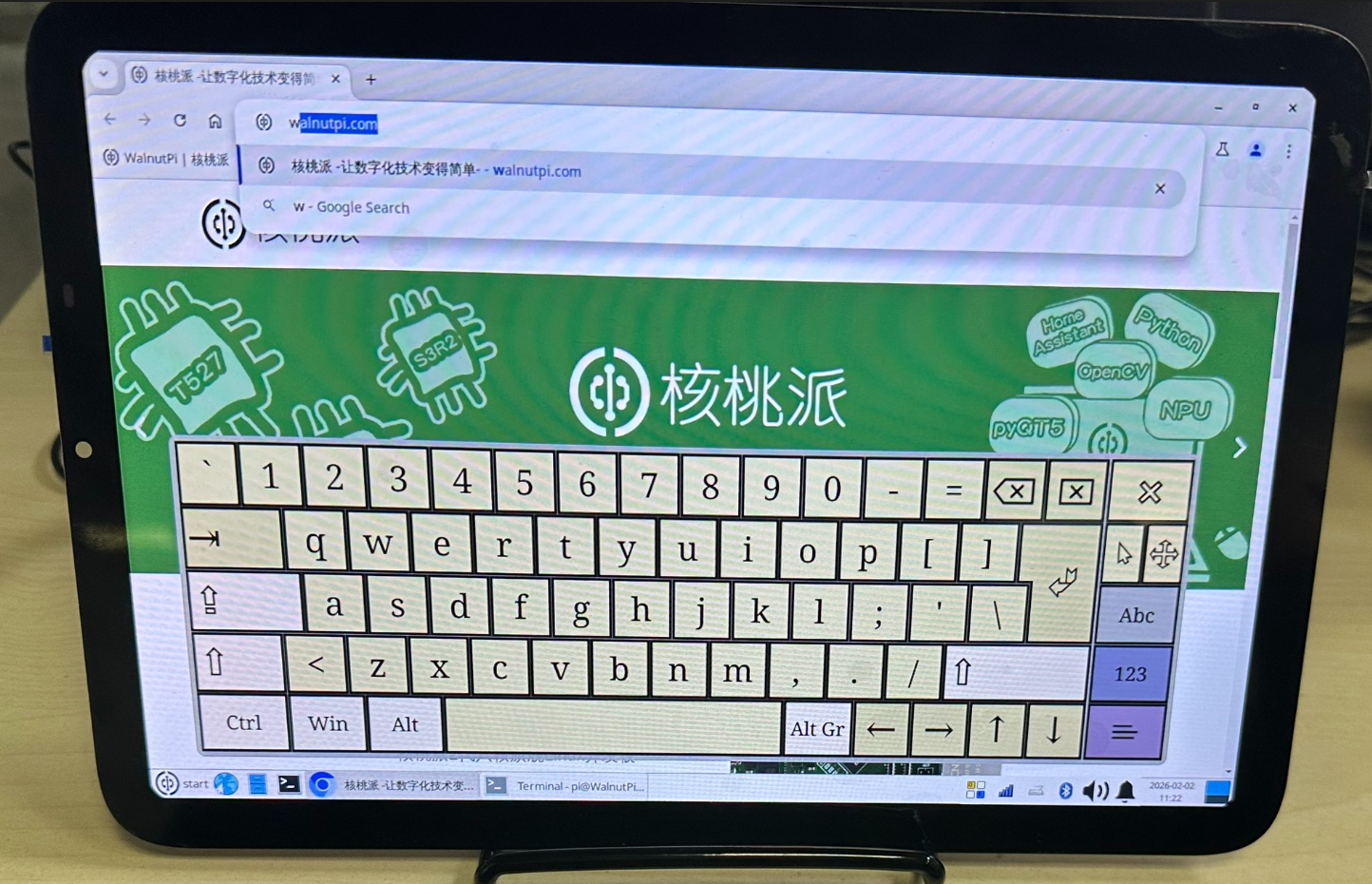
The keyboard opens as shown below and can be resized as needed.
Dual Display (Extended Desktop)
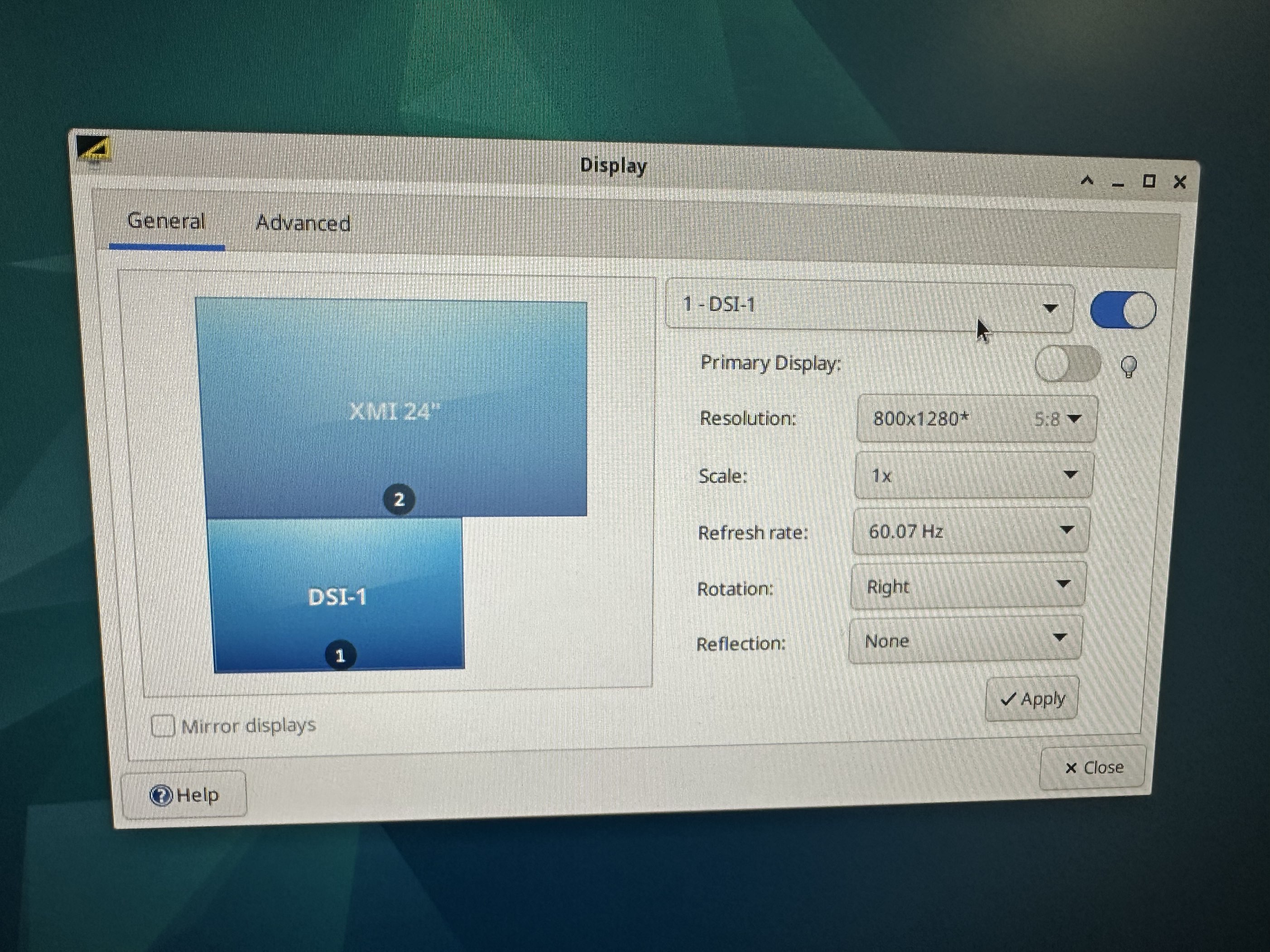
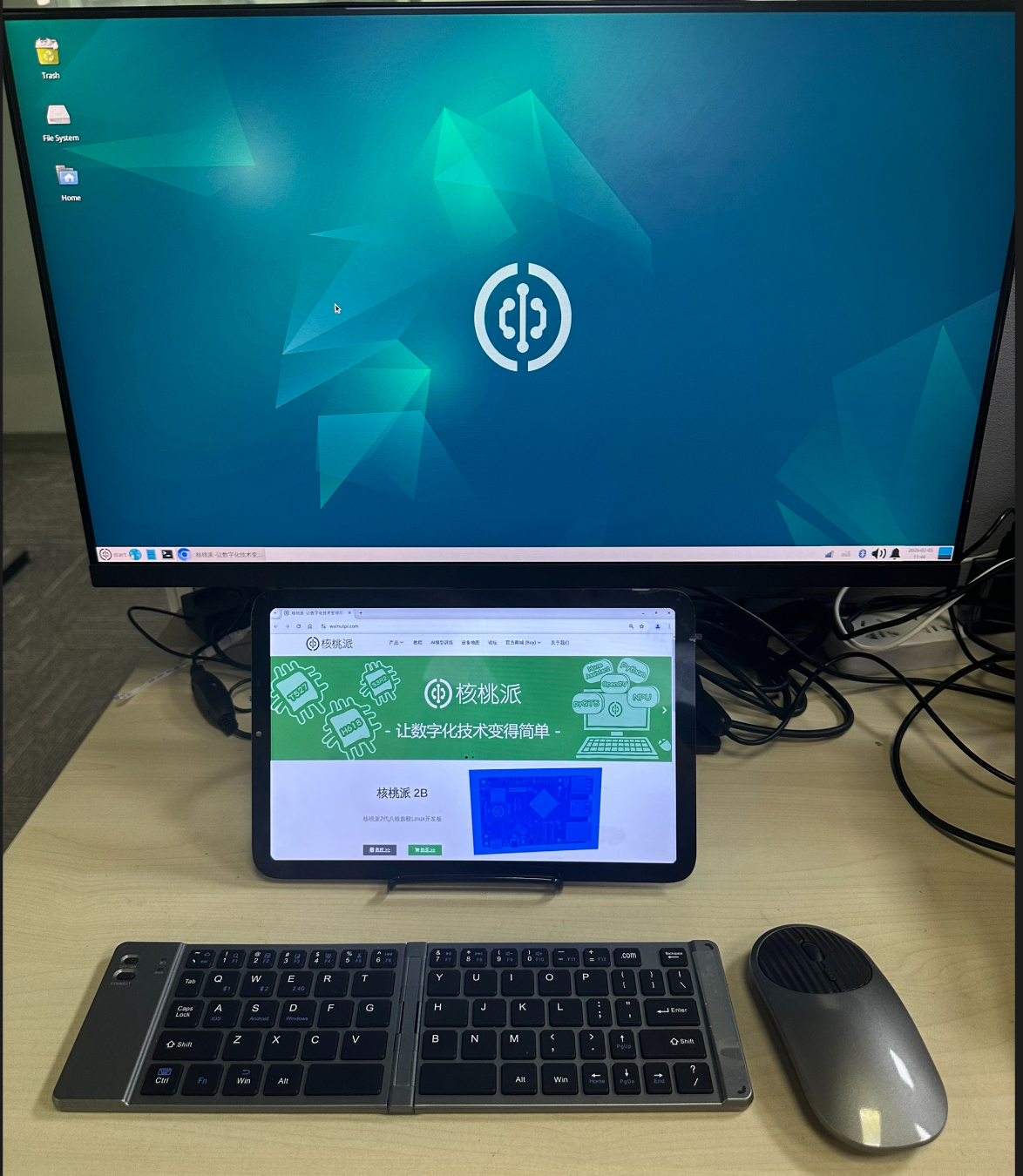
When both a MIPI display and HDMI are connected, the Walnut Pi Desktop edition automatically enters dual-display mode upon boot. You can configure extended display and other display modes through Settings - Display.
Example: In the image below, dragging the dsi-1 window below the HDMI display means that moving the mouse beyond the bottom-left of the HDMI display will enter the MIPI display—similar to extending a desktop on a PC.
The Server edition only supports a single display mode.
Disabling LCD Display
Use the following command to remove the LCD display function and boot from HDMI:
sudo set-lcd dsi-1280x800 remove