Audio
Headphone Jack
The WalnutPi has an onboard 3.5mm audio output jack with a certain amount of output power. You can use headphones or powered speakers to play sound.
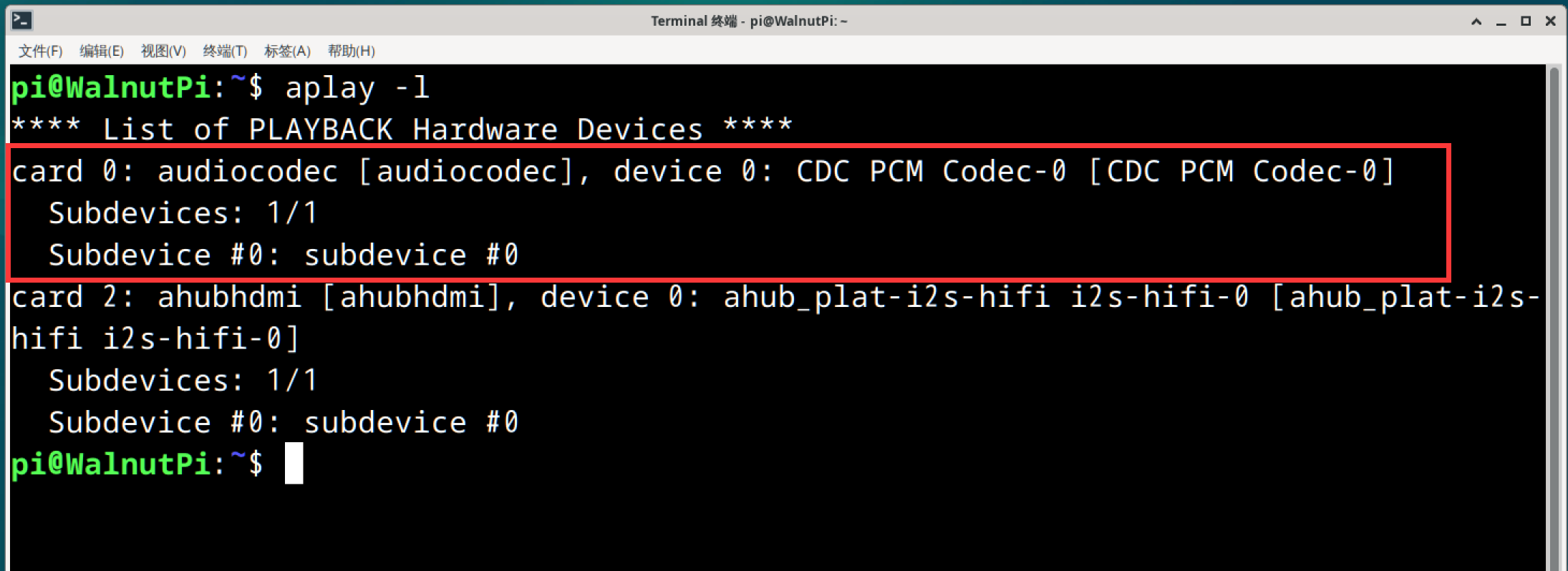
Checking Audio Devices
Use the following command to check audio information:
aplay -l
Audio Playback Test
Play the system's built-in WAV audio file for testing. In the command below, audiocodec is the headphone jack device name found by the above command:
aplay -D hw:audiocodec /usr/share/sounds/alsa/Noise.wav

Connect headphones or speakers to the audio jack, and you should hear sound playing.
Desktop Music Playback
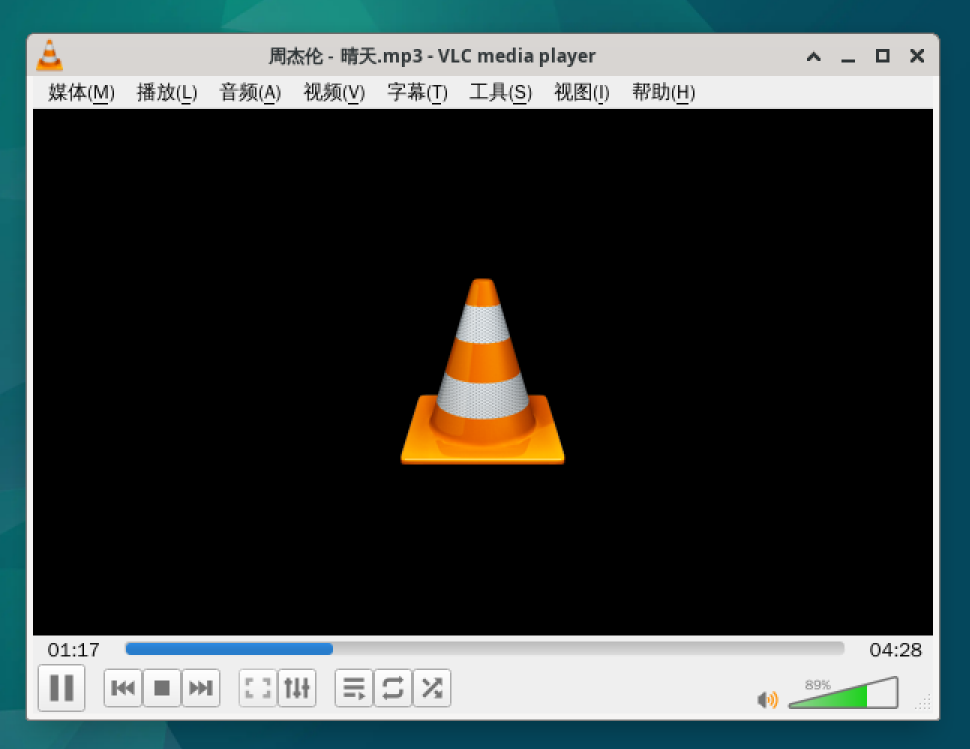
You can directly use the pre-installed VLC media player on the desktop system to play audio.
First, copy the audio file to the WalnutPi via USB drive or SSH, then right-click and select Open with VLC Media Player:
HDMI Audio
If your HDMI display has built-in speakers, you can test it by connecting to a Windows computer and checking if audio can be played through the HDMI display's audio output option.
This feature requires system version v2.0.0 or above.
Checking Audio Devices
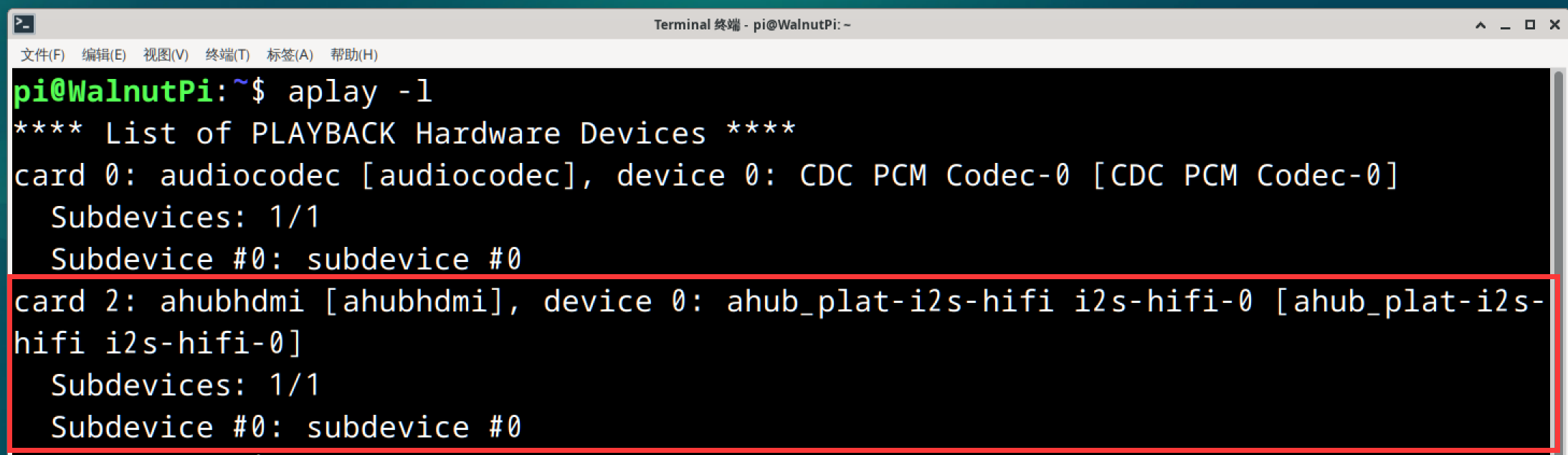
Use the following command to check HDMI audio information:
aplay -l
Audio Playback Test
Play the system's built-in WAV audio file for testing. In the command below, ahubhdmi is the HDMI audio device name found by the above command: (Note: this command uses [plughw], not [hw] as in the headphone jack command)
aplay -D plughw:ahubhdmi /usr/share/sounds/alsa/Noise.wav

Desktop Music Playback
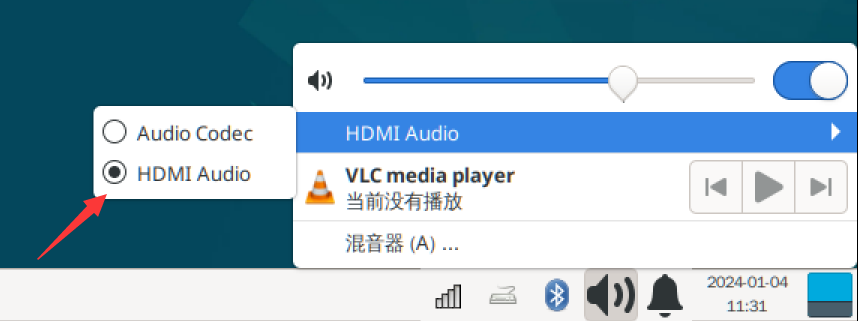
You can directly use the pre-installed VLC media player on the desktop system to play audio. The WalnutPi system defaults to using the headphone jack for audio output. Simply switch to HDMI in the navigation bar at the bottom right to globally switch audio output for players, web browsers, etc.
First, copy the audio file to the WalnutPi via USB drive or SSH, then right-click and select Open with VLC Media Player: