USB Drive Mounting
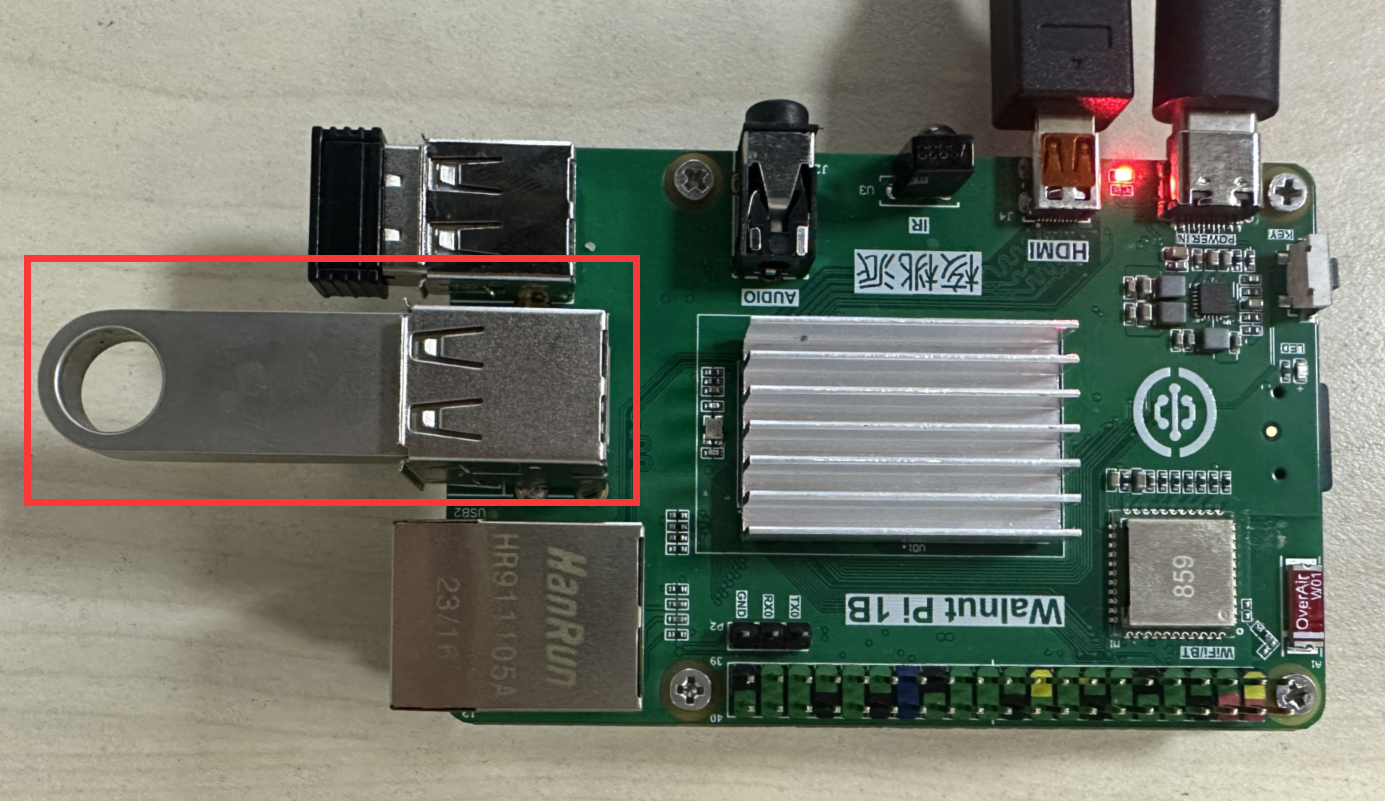
Insert the USB drive into one of the WalnutPi's USB ports.
Desktop System
On the desktop system, operation is similar to a Windows computer. After inserting the USB drive, a transparent USB drive icon will appear on the desktop.
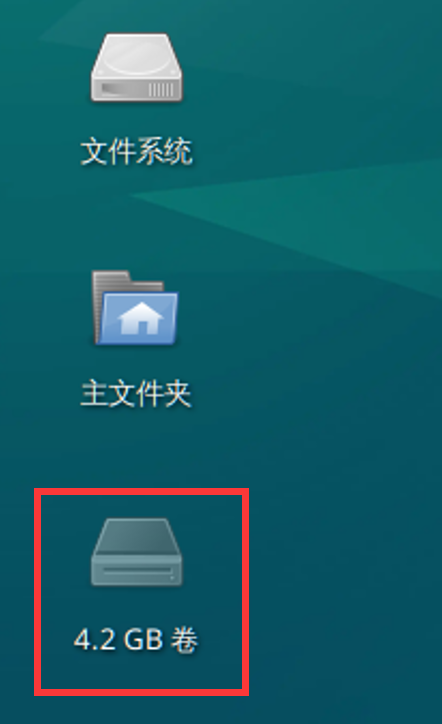
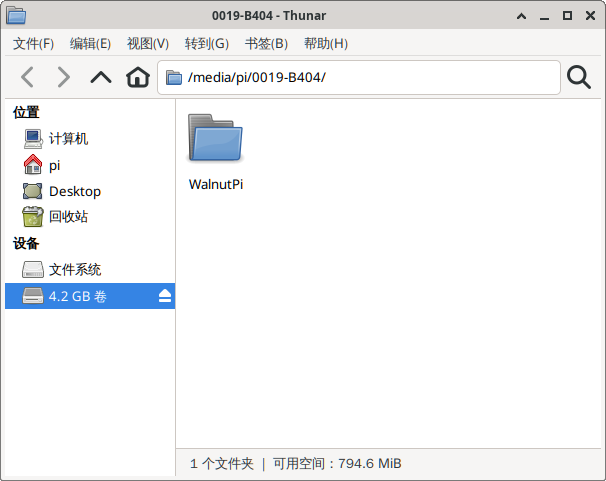
Double-click directly to mount and open the USB drive. You can see that the USB drive is located under the /media/pi/ directory:
Non-Desktop System
On the non-desktop system, you can use commands to mount the USB drive. (This method also works for the desktop system.)
After inserting the USB drive, first check the USB drive information:
sudo fdisk -l
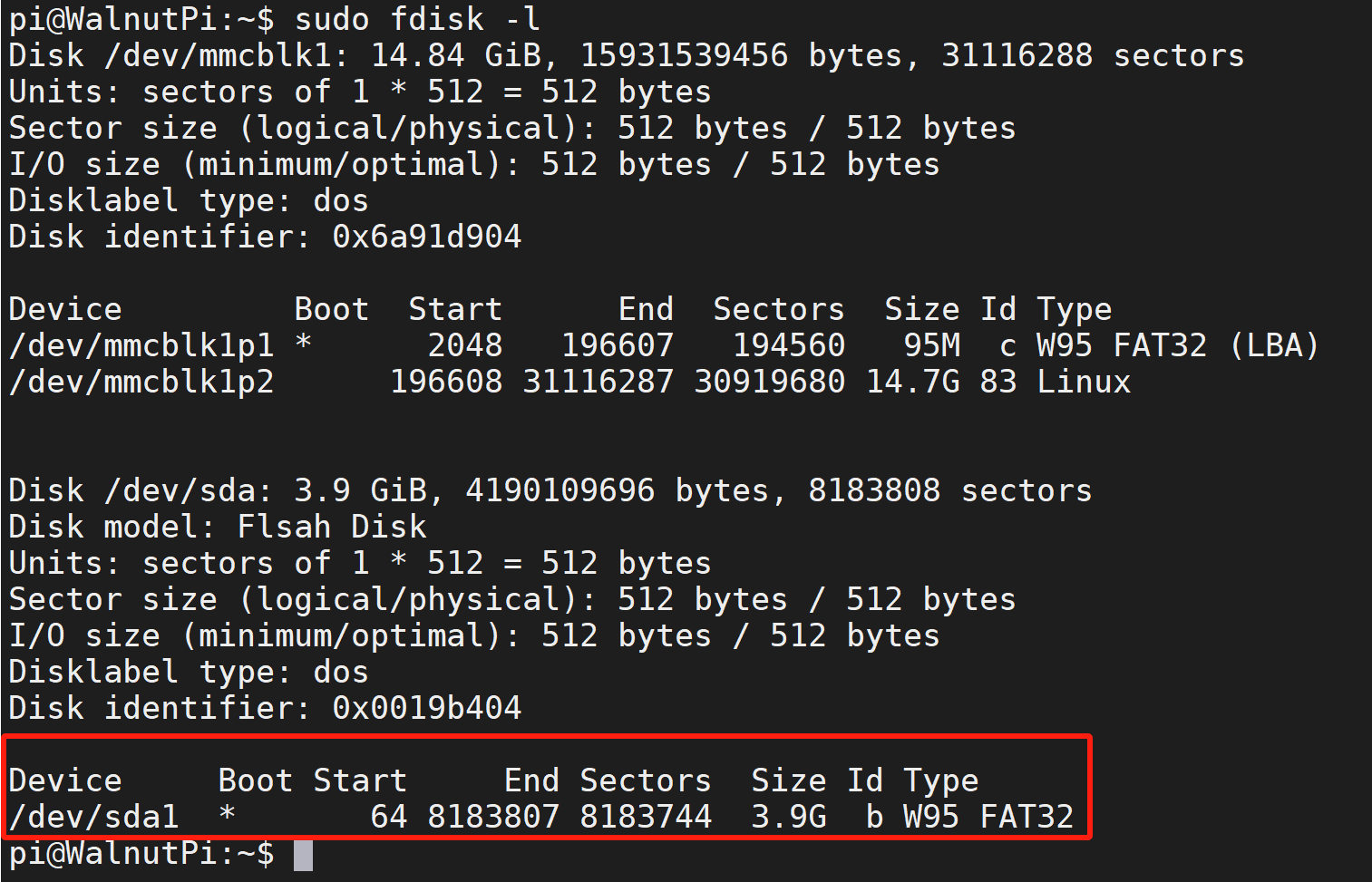
This example uses a 4GB USB drive. From the image above, you can see the device is: /dev/sda1.
Once you know the USB drive's device name, you can use the mount command to mount it, usually under the /media or /mnt directory:
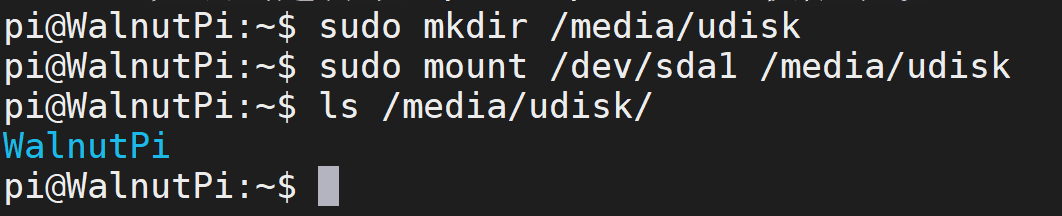
First, create an empty folder under /media. Name it as you like; here we use "udisk":
sudo mkdir udisk
Mount the USB drive:
sudo mount /dev/sda1 /media/udisk
After successful mounting, use the "ls" command to see the file contents of the USB drive, indicating a successful mount.
ls /media/udisk
You can unmount the USB drive using the following command:
sudo umount /media/udisk